
The editor: worked examples
This page shows, by example, how to get each thing onto the page. The first half is for writing straight into the editor. The second half is for work that already exists in Word, Markdown or LaTeX.
For what the buttons are, see Write in the editor. For what to write, see Write well.
Writing straight into the editor
Section titled “Writing straight into the editor”You can use the toolbar for everything. If you prefer the keyboard, the editor also understands a few things as you type them. Both ways give the same result.
Headings
Section titled “Headings”Use the three heading buttons in the toolbar: a section, a subsection, and a part of a subsection. Or start a line with one of these and a space:
| Type at the start of a line | You get |
|---|---|
# |
A section heading, such as Introduction |
## |
A subsection heading, such as Study area |
### |
A heading inside a subsection |
Do not number headings by hand, and do not skip a level.
Bold, italic, lists and quotes
Section titled “Bold, italic, lists and quotes”| To get | Toolbar | Or type |
|---|---|---|
| Bold | The bold button | Ctrl+B (Cmd+B on a Mac) |
| Italic | The italic button | Ctrl+I |
| A bullet list | The bullet list button | - at the start of a line |
| A numbered list | The numbered list button | 1. at the start of a line |
| A quote | The quote button | > at the start of a line |
| Undo | Ctrl+Z |
In a list, press Enter for the next item, and Enter twice to leave the list.
For example, type this, with Ctrl+B before and after the word germination:
# IntroductionSoil moisture controls germination, and is seldom measured at more than one depth.## Study areaTwo sites were sampled in March:- the north field, on claythe south field, on sand
> Measure where the roots are, not where it is easy to dig.
What you get:
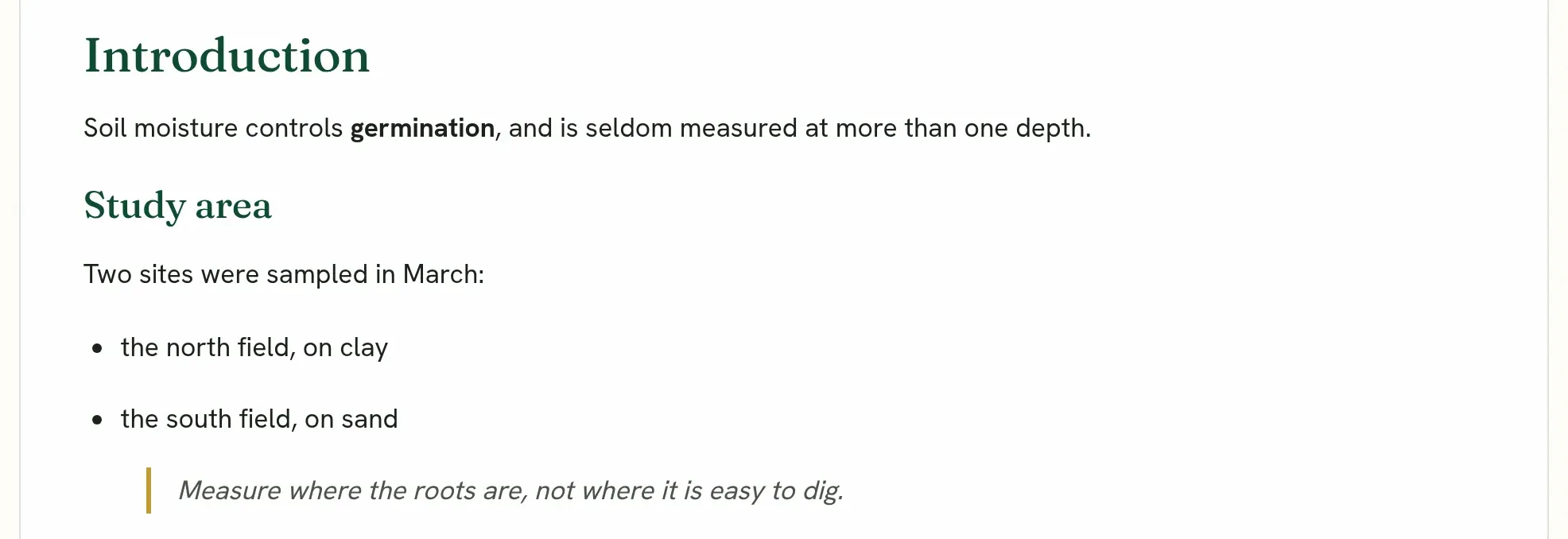
The second item of the list needs no - : you are already in the list.
A formula inside a sentence
Section titled “A formula inside a sentence”Write the formula in LaTeX between two dollar signs. For example, type:
The yield rose by $12\,\%$ when $x^2 + y^2 < r^2$.What you get:

It is drawn as a formula as soon as you move the cursor away. An amount of money, such as $5 or $20, stays as text.
Click a formula to change it. A box opens with what you typed and the formula drawn under it as you change it. Buttons along the top put in the common parts: a fraction, a power, an index, a square root, a sum, an integral, brackets that grow, Greek letters and signs such as ≤ and ±. Each goes in where the cursor is, with the part you still have to type selected. Press Apply, or Edit as text instead to change the dollar signs and LaTeX in the sentence itself.
The $x$ button in the toolbar opens the same box to write a new formula at the cursor. It is put in the text between dollar signs, the same as typing it, so it goes out to Word, Markdown and LaTeX unchanged.
A formula that cannot be drawn shows in red with a dashed outline. Rest the pointer on it to read why, in words: a { left open, a command such as \SI that comes from a LaTeX package, a ^ with nothing after it. A short note under the editor lists every such formula and the section it is in. Press Show me beside one to go to it with its box open. The preview lists them again beside the button, and its link brings you back to the first. They never stop you submitting.
In the abstract, which is a plain box, the formulas are shown as they will print just under it, and one that cannot be printed is named there with what is wrong. Show me selects it in the box.
The paper, the abstract and the other fields are saved as you write, a moment after you stop typing and again when you leave the page. There is nothing to press.
A numbered equation on its own line
Section titled “A numbered equation on its own line”Use the equation button in the toolbar. A small box opens. Write the equation in LaTeX, for example:
E = \frac{1}{2} m v^2The box shows the equation drawn as you type, so you see a mistake before you press the button.
What you get, in the preview and in the PDF:

It is placed on its own line and numbered for you. In the editor it is shown without its number. The number is given in the preview, the PDF and the published page, and stays right when you add or move equations. To change it later, click the equation. To refer to it, write “Equation 1” in your sentence.
Writing $$ ... $$ on its own line also draws the equation on its own line, but without a number.
A table
Section titled “A table”There are two ways.
Make it in the editor. Press the table button and choose its size on the grid: the first row is the header. Type in the cells. Tab moves to the next cell, and in the last cell adds a row. While the cursor is in the table, more buttons appear: add a row above or below, a column to the left or right, or delete one; make the first row or the first column a header; merge the cells you have selected by dragging across them, split a merged cell, and align the selected cells (right is best for numbers).
Its caption and note. Click the line above the table to write its caption, and the line under it to write a note or the source, such as Note. Values are means of three seasons. or Source: national census, 2019. Both are written where they print. Press Enter to keep it, or Escape to leave it as it was. The note is printed under the table as you wrote it, in the PDF, the Word file and the LaTeX file. A line starting “Note” or “Source” straight under a table in a Word, Markdown or LaTeX file you import is made the table’s note, and a LaTeX table’s tablenotes are too.
Paste it. Copy a table from a spreadsheet or from Word and paste it into the page. A table written as text is also turned into a real table when you paste it. Any of these works:
Site Depth (cm) Moisture (%)North 10 23.1South 15 19.4| Site | Depth (cm) | Moisture (%) ||-------|-----------:|-------------:|| North | 10 | 23.1 || South | 15 | 19.4 |\begin{tabular}{lrr}Site & Depth (cm) & Moisture (\%) \\North & 10 & 23.1 \\South & 15 & 19.4 \\\end{tabular}After a paste, the editor says what it made, so you know to check it.
What you get from any of the three, in the preview:
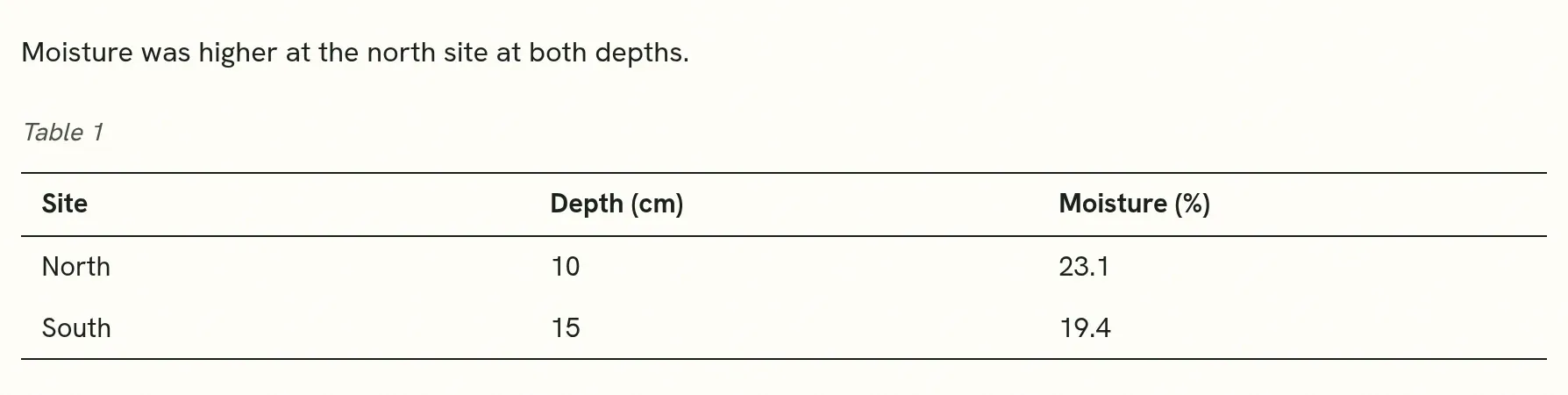
Tables are drawn in the plain academic style: a rule at the top, one under the header and one at the bottom, with no vertical lines. A table that needs every line can be given grid lines from the table buttons.
Write the caption as a sentence, without “Table 1”: the number is added for you and stays right when tables move.
A figure
Section titled “A figure”Use the figure button and choose a picture, or paste or drop a picture into the page. PNG, JPEG, GIF and WebP are taken. A large picture is made smaller in your browser before it is sent.
Under the picture, write its caption, without “Figure 1”. The number is added for you. If the picture is in fact a table (a table saved as an image), say so beside it, and it is numbered with the tables.
Pictures copied from Word together with text come in with the text. Where Word did not put the picture itself on the clipboard, the editor tells you which ones to add again.
Use the code block button, then choose the language so the code is coloured. Or type three backticks at the start of a line:
```for site in sites: print(site.name, site.moisture)```What you get:

Formulas are not drawn inside code, so a dollar sign there stays a dollar sign.
Citations and references
Section titled “Citations and references”Keep the reference list in the References panel, not in the text. In the text, cite as you normally do:
| Style | Type |
|---|---|
| Numbered | [1], [2, 3], [4-6] |
| Author and year | (Smith, 2020) or Smith et al. (2020) |
Each citation is matched to the list as you write, and one that matches nothing is marked. See References and citations.
A short paper, typed from nothing
Section titled “A short paper, typed from nothing”This is everything a small paper needs, as you would type it:
# IntroductionSoil moisture controls germination [1]. Earlier work measured it at onedepth only (Okafor, 2021).
# Methods## Study areaTwo sites were sampled in March 2026.
## ModelMoisture $\theta$ was related to depth $d$ by a straight line.
(equation button)   \theta = a + b d
# Results(paste the table)   then give it the caption: Mean moisture by site.(figure button)     then the caption: Moisture against depth at both sites.
# ConclusionMoisture fell with depth at both sites.
Then add the references in the References panel, and open the preview to see it as readers will.
For a longer example with every part in it, and the text to copy and paste into an empty paper, see a complete example.
Pasting a whole paper
Section titled “Pasting a whole paper”A paper written in Markdown can be pasted straight into an empty paper. It is read as a .md file would be: headings, lists, formulas, equations, tables and code are drawn, and a reference list at the end moves to the References panel. An equation on a line of its own between $$ signs becomes a numbered equation.
Where there is already text, the same paste arrives as plain text and a note says why. Nothing you wrote is replaced.
Bringing in work you already have
Section titled “Bringing in work you already have”Use the import button in the toolbar. What each kind of file brings in, and what to check afterwards, is in Import a paper you have already written. The examples below show what to prepare.
From Word (.docx)
Section titled “From Word (.docx)”Before you import, in Word:
- Give headings the styles Heading 1, Heading 2 and Heading 3, not bold text made larger. Styled headings come in as headings.
- Use Word’s own tables, not tabs or spaces.
- Put each caption in the paragraph directly under its figure or above its table. It is joined to the figure or table.
- Write formulas with Word’s equation tool. A formula saved as a picture comes in as a picture.
- Put the reference list last, under a heading such as References. It is moved into the References panel.
A title, authors, abstract and keywords at the top of the file are offered into their fields.
From Markdown (.md)
Section titled “From Markdown (.md)”A file like this imports as it reads:
# Introduction
Soil moisture controls germination [1].
## Study area
| Site | Depth (cm) ||-------|-----------:|| North | 10 |

The line is $\theta = a + b d$.
$$E = \frac{1}{2} m v^2$$A Markdown file holds only the names of its pictures, not the pictures. Add each one with the figure button after the import.
From LaTeX, one file (.tex)
Section titled “From LaTeX, one file (.tex)”One .tex file is enough when the paper has no figures and its references are written in the file:
\documentclass{article}\begin{document}\title{Soil moisture and depth}\author{A. Okafor}\maketitle\begin{abstract} Moisture fell with depth at two sites. \end{abstract}
\section{Introduction}Soil moisture controls germination \cite{smith2020}.
\begin{equation}\label{eq:line}\theta = a + b d\end{equation}Equation \ref{eq:line} is fitted in Section 3.
\begin{thebibliography}{9}\bibitem{smith2020} J. Smith, Soil water, 2020.\end{thebibliography}\end{document}
The sections, the formula with its number, the citation and the reference list all come in.
From an Overleaf project or a folder (.zip)
Section titled “From an Overleaf project or a folder (.zip)”When the paper has figures, a .bib file, or more than one .tex file, import the whole project as one zip:
paper.zip main.tex sections/methods.tex (brought in by \input{sections/methods}) figures/moisture.png references.bibOn Overleaf, use the download of the source as a zip. From your own computer, put the files in one folder and zip it, with no password. Drawings made in code and EPS figures are marked where they were: save each as PNG or PDF and add it with the figure button.
After any of these
Section titled “After any of these”Open the preview and read it through once: headings in order, every figure and table with its caption, formulas drawn, and each citation matched to a reference. Then see Before you submit: a checklist.
Quorum PressOpen callsRead researchSomething missing or wrong here? Tell us