
Attend a conference without a submission
You can attend a conference without submitting anything, where its organizers take such registrations. If you are an author at the event, do not use this page: your attendance is on your submission. See Registration fee and payment.
Where to find it
Section titled “Where to find it”-
Attend, in the menu, lists the conferences taking registrations now, and the ones you have registered for.
Each part of the Attend page, such as checking in, your part on an event’s team, or your certificates, folds by its heading. Press a heading to close a part you are not using; the number beside it says what the part holds. The page remembers the parts you closed, on that device.
-
The conference’s public page has a Register to attend button, where its organizers take such registrations.
-
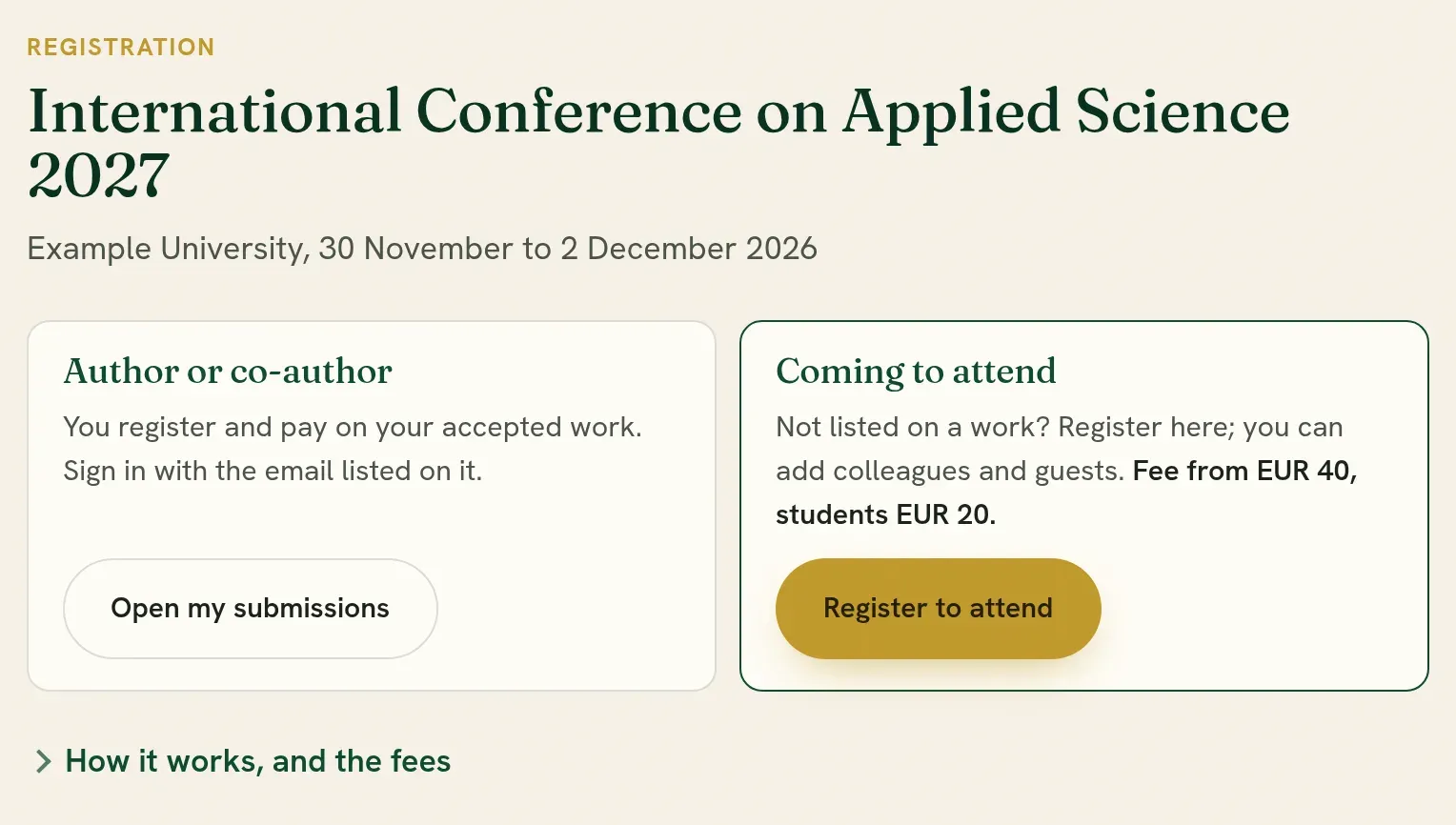
The organizers may send you a link. It opens a page with two choices, each with its button:
- Author or co-author: anyone listed on an accepted work registers and pays on that work. Open my submissions takes you there; sign in with the email the work lists.
- Coming to attend: anyone else. It shows the lowest fee and the student fee, and Register to attend creates an account, or signs you in, and continues to the registration.
Under them, How it works, and the fees opens the steps and every rate.
-
Your dashboard asks Attending a conference? when a conference is taking registrations and you have nothing submitted to it.
Register
Section titled “Register”-
Open the conference from Attend, or from the organizers’ link.
-
Check your name, as it should be printed on your badge, and your institution.
-
Choose the country under Coming from, and In person or Online. Tick A student if you are one and the page offers it. The amount is shown as you choose.
-
Press Register to attend.
Register other people
Section titled “Register other people”You can register other people on the same page, for example colleagues, students or guests, and pay for all of them together.
-
Press Add another person.
-
Give their name, their own email address, where they are coming from and how they attend.
-
Press Register this person.
- Each person is told by email. When they sign in with that address, or create an account with it, they find their registration, and later their badge and certificate.
- They do not need an account for you to register them or pay for them.
- An author at the event can do this too, for guests. An author’s own attendance stays on their submission.
- Somebody who is an author at the event cannot be added here. Their attendance is on their submission.
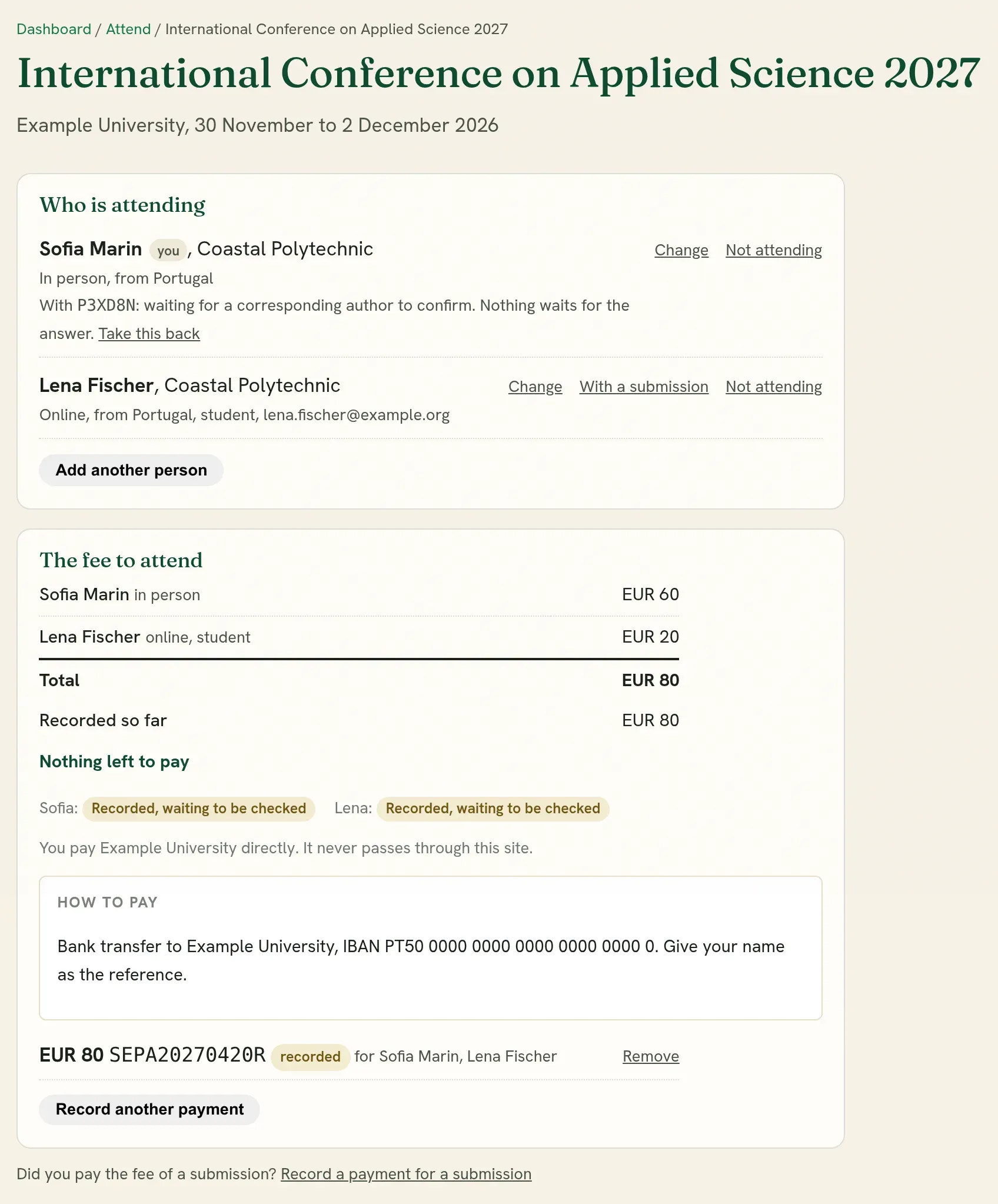
Under Who is attending, each person has Change, With a submission and Not attending.
A rate is given on your word. If you said you are a student, take your student card with you: the conference may ask for it.
Pay, and record the payment
Section titled “Pay, and record the payment”The fee is the conference’s and is paid to the conference, in the way it describes under How to pay. Quorum Press never collects it.
-
Pay the conference, and keep the confirmation you receive.
-
On the same page, press I have paid: record the payment.
-
If you registered more than one person, tick who the payment is for under This payment is for. One payment for several people is recorded once, and shared between them.
-
Paste the whole confirmation message. The transaction code and the amount are read from it. Your balance and other private details are taken out before it is saved.
-
Check the Transaction code, the Amount paid and the Currency.
-
Add a Receipt or screenshot if you have one. Only the organizers can open it.
-
Press Record it.
The page shows the fee as a short sum: a line for each person, the total, what is recorded and what is still to pay.
| On the page | What it means |
|---|---|
| To pay | Nothing is recorded yet. |
| Part paid | What you recorded is less than the fee. The page shows what is still to pay. |
| Recorded, waiting to be checked | You have told the conference. They have not checked it yet. |
| Paid | The conference found your payment. |
| Payment not found | The conference could not find it, and says why. Check the code and the amount. |
| Nothing to pay | The conference has excused you from the fee. |
You can remove a payment you recorded until the conference has checked it.
If you come with a submission
Section titled “If you come with a submission”If you come with the authors of a submission, you may give its tracking code with With a submission, beside your name. This is optional, and it can be done for each person you registered.
- A corresponding author of that submission is asked to confirm it.
- You are registered, and you can pay, whatever the answer is and before it comes. The corresponding author has three answers, and can change between them:
| Their answer | What it means for you |
|---|---|
| Attending with us | You keep that submission’s rate dates, for example its early rate. You are not an author and cannot open the submission. |
| List as an author | You are added to the submission’s authors and can open it. Your fee becomes the one for an author who attends, still paid on this page. |
| Decline | You stay registered on your own. Nothing else changes. |
If you are already one of the submission’s authors, under the same email address, nobody is asked. Your attendance is put on the submission as you gave it here, you are taken to the submission, and its fee is paid there. This separate registration is closed, so you are not charged twice. If something was already paid on it, write to the organizers so it is counted once.
A payment for a submission
Section titled “A payment for a submission”A supervisor, a department or a sponsor sometimes pays a submission’s fee. At the foot of the conference’s page under Attend, use Record a payment for a submission: give the submission’s tracking code, paste the confirmation, and press Record it. The authors and the organizers see it, and the organizers check it.
If you are one of the submission’s authors, the payment is recorded on your submission as your own, exactly as if you had recorded it there, and you are taken to it.
Your place in the programme
Section titled “Your place in the programme”Under Attend, Your presentation time shows where your talk is in the programme: the day, the time, the room and the session. Where the organizers allow it, Take another time lists the free places you may move to. A place that would put you in two rooms at once is not offered. Where they do not allow it, the page says so and leads to a message to them.
Where the organizers allow it, Changing places lets you ask for any place: a free one, or one another presenter holds, to swap with them. Choose the day, keep to your own theme or not, press Ask for this place or Ask to swap, and say why if you like. The other presenter is asked first, then the organizers where they decide. When somebody asks to swap with you, it is shown here with Agree and Decline, and with what it would do, such as a talk away from its theme. Nothing moves until everybody needed agrees. Guide for presenters on the same page is a PDF with your time, the most slides you may show, and how to build your talk.
If the event has a fee and yours is not settled, the page says This place is held for you and the public programme shows it as to be confirmed. Register, and your talk appears with its title and your name.
Check in at the event
Section titled “Check in at the event”On the day, check in to record that you are there. Your certificate is issued on it. This is the same for authors and for people who came to listen.
- Attend, in the menu, opens with Check in at an event. Each event you are on the list of is shown there. Press I am here: check me in.
- Or scan the QR code on your badge. It asks you to sign in to your account, then to confirm.
- Or ask at the registration desk. The organizers can tick you themselves.
After you check in, the same place says Checked in, with the time and how you checked in.
If your event is not listed, the organizers hold a different email address for you than the one you signed in with. Open Check in with a tracking code under the list, enter the tracking code of your submission, choose your name, and give the email address your acceptance was sent to.
Each event chooses which of these ways it uses, and when check-in is open. Where a way is switched off, the page says which to use instead.
Say how it went
Section titled “Say how it went”During the event and for a month after it, Attend has How it went for the events you are part of. Organizers may also share a link, such as quorumpress.org/feedback/your-event, on the screens or as a QR code.
- Anybody can rate a session they attended (how useful, how well run) and add a comment, and give feedback on the event as a whole once. Everything is optional.
- The event’s team, its chairs and rapporteurs report on the sessions they ran: when each started and ended, which talks were given, how many came and asked, and what went wrong. It is mostly taps, about a minute a session, and the sessions of your own room come first. You can change a report later.
A part on an event’s team
Section titled “A part on an event’s team”When the organizers give you a part, such as usher, session chair, rapporteur or a place on the committee, it is listed under Attend, in Your part on the team, once you sign in with the address they hold for you. Press Accept or Decline; they are told either way, and you can change your answer until the event is over. Organizers may instead send you a join link for a role: open it, sign in or make an account, and press Accept the role. Your name goes on your badge and certificate as it is on your account, so correct it in your profile first if it needs to be. Somebody with several parts, such as a presenter who also chairs a session, has a certificate for each and one badge.
Your badge and certificate
Section titled “Your badge and certificate”Where a conference lets presenters choose when they present, Your presentation time on this page lists each of your accepted submissions with the time it holds. Press Choose your time, or Change it, to pick another that is free. It used to be a step on the submission’s own page; it is here now, with everything else about being at the event.
Your badge, with its code, is shown under Check in at an event once the organizers release badges; until then it says it will come. You are a participant like any other: the organizers can print your badge, and your certificate is released the same way as an author’s. Under Check in at an event, each event shows the name your certificate will carry. If it is spelt wrongly, press Correct the name and write it exactly as it should be printed, with your title if you use one. You can do this until the organizers release your certificate. After that it is issued: write to the organizers, and they can correct it. You do not need a new link, since the certificate carries the corrected name the next time you open it. Your certificate has a number and a code: anybody you show it to can open the address on it and see that it is genuine, with the certificate itself shown on that page. When it is released, it is on this page under Your certificates, for authors too, and the organizers may email you a link to it. Where a conference holds a certificate back for an unpaid fee, Your certificates says so and has Pay or record a payment, which opens the registration of the submission. The certificate opens as soon as the fee is settled. Where your work won an award and the conference gives awards a certificate of their own, Your certificates also lists the Award certificate, once the organizers release it, whether or not you attended. It has its own number, checked in the same way. If you reviewed for a conference, your certificate of review is listed there too once the organizers release it, saying how many manuscripts you reviewed.
Your certificates are grouped by event, the latest first; after the latest few, earlier events are folded, so a long record stays short. Beside each certificate, Anyone with its code can check it is on: switch it off and the address on the certificate says no certificate stands under its code. The certificate is still yours to download. Registrations for events that are over are folded under Earlier events.
If you are not coming after all
Section titled “If you are not coming after all”Press Not attending beside the person’s name. What was recorded stays on the record for the organizers. Write to them about a refund: it is theirs to give. Register again puts the person back.
Hear about new calls and events
Section titled “Hear about new calls and events”Under News of calls and events, on Attend and in your profile, press Subscribe to receive an email when a new call for papers, conference or workshop opens. Press Unsubscribe there to stop.
Quorum PressOpen callsRead researchSomething missing or wrong here? Tell us