
Programme, badges and certificates
The programme
Section titled “The programme”Open Program on your conference.
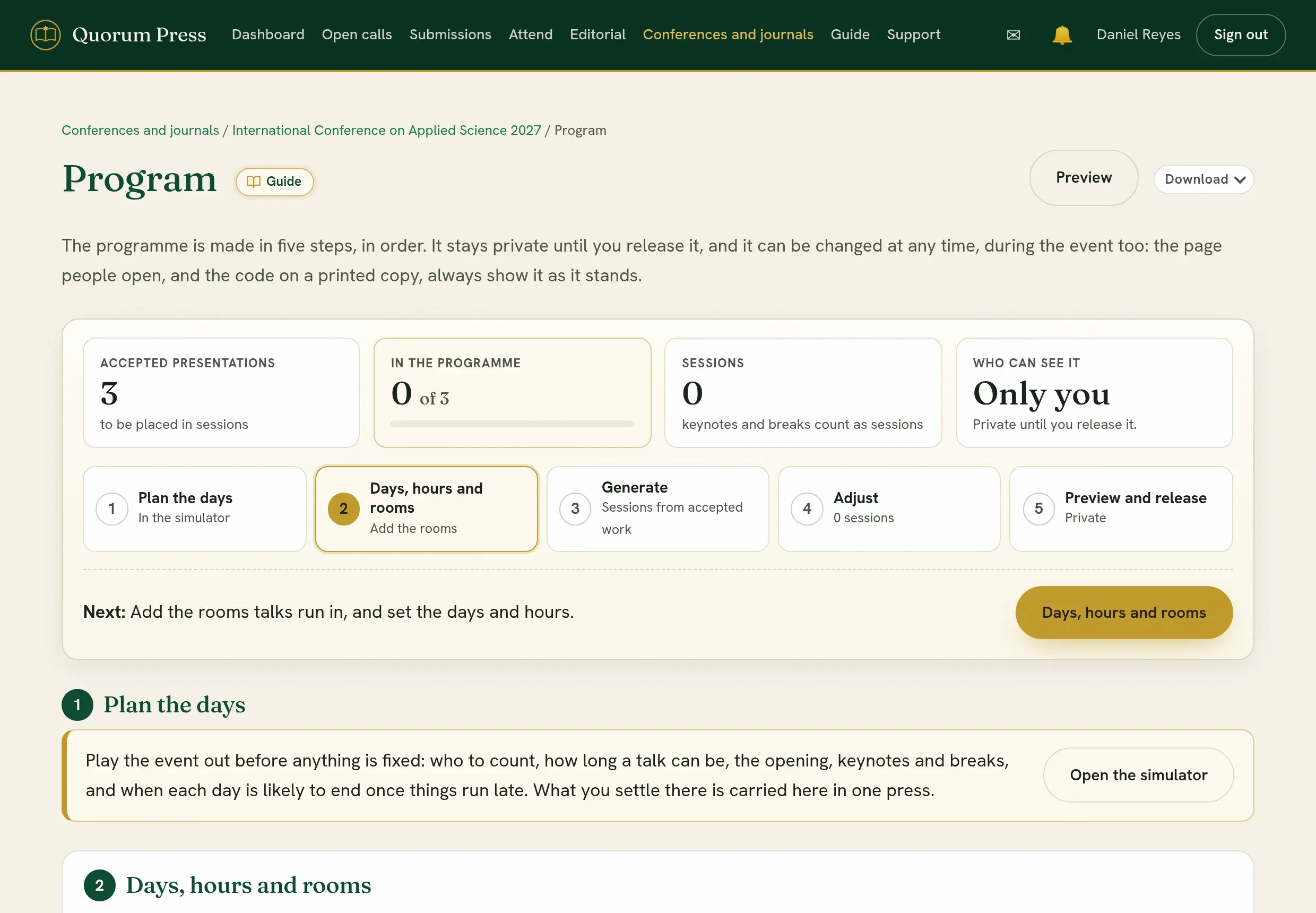
The page opens on where the programme stands: how many accepted presentations there are, how many are in the programme, how many sessions it has, and who can see it. Under that are the five steps, each ticked once it is done, and a line that says what to do next.
-
Plan the days. Open the simulator and play the event out before anything is fixed. See See the days before they happen.
-
Days, hours and rooms. Pick each day from the calendar. Set when a day usually starts and ends, and change one day’s hours where it differs from the others: a first day that begins later, a last day that ends at lunch. Add the rooms talks run in (see The rooms below). Press Save the days and hours. These are the programme’s only days, hours and rooms: the simulator and Generate use the same ones.
-
Generate. Press Generate program. Sessions are made from the accepted presentations, grouped by track, and each talk gets a time in a room. Keynotes, breaks and anything you added yourself stay where they are and the talks go around them. Choose how the themes are set out: each theme in a room of its own, with the themes side by side and each keeping to one room, one theme at a time, where a theme fills the rooms of a day before the next begins, or fill the time and the rooms, where every stretch between breaks is one session used to its end (see below). A theme that does not fit before a break carries on after it. Nobody is given two talks at the same time: where the themes would do that, the talk changes places with another, of its own theme where it can. Posters go together in the poster session and take no room. Work whose authors said nobody will present is left out.
-
Adjust. Sessions are listed day by day. Add a keynote, a break or a session of your own, edit what was generated, and open Add a talk under a session to add one. On a keynote, a name in Block such as Keynote 1 or Plenary 2 is printed beside its title instead of the word Keynote. On an event of more than one day, the programme and its PDF head each day Day 1 · Wed 4 Nov.
-
Preview and release. Look at it as the public will see it, look at the PDF, then Release to public.
- The programme is private until you release it. You can take it back at any time.
- Names carry through. Rename a room and the sessions in it take the new name. Give a day its date, or pick another date, and its sessions, breaks and presenters’ times go with it. A title or an author’s name changed on a submission shows in the programme at once.
- Chairs and rapporteurs stay when you generate again: a new session in the same room at the same time takes the chair and the rapporteur of the one it replaces. Where the times or rooms change, give them again under Chairs and rapporteurs.
- Generate again whenever something changes: more work accepted, a keynote moved, a room added. What you added or edited by hand stays.
- A presentation whose fee is not settled is left out where your event says an unpaid fee holds back a place in the programme. The page says how many, and leads to the registrations desk.
- It can change during the event. The public page always shows the programme as it stands, with when it last changed. The code on a printed copy opens that page, and everybody who is part of the event finds it under Attend, in Programmes.
- Online or hybrid sessions: paste the link of the meeting tool you use into the session’s online meeting link. It shows on the programme and in the downloads.
- Download is one menu wherever a list can be taken away: the programme, the booked times and the rooms.
- Download gives the programme as a PDF, with or without a QR code to the live programme, as a spreadsheet, and as CSV. These are always the programme in use. A version’s own PDF is its PDF button under Versions to compare, and Download the programme on a version’s page gives that version. Every programme PDF says on its cover which programme it is and when it was made, so an older copy in your downloads is easy to tell apart.
See the days before they happen
Section titled “See the days before they happen”Open the simulator on the Program page plays the event out before anything is fixed. Change any number and the answer changes with it. Nothing in the programme is touched until you say so.
It is in five parts:
| Part | What you say |
|---|---|
| Who presents | Whose presentations to count: only those registered, everybody accepted, accepted with the share you expect from those still being reviewed, or everything sent in. Add any more you expect before the day. The page counts them for you, by online, in the room, not said, and posters. |
| Days and rooms | The days, when each starts and ends, the rooms for talks, which of them can take an online presenter, and where the posters stand. Tick Online presenters in the mornings for an event people travel to. The rooms are the event’s own list, the same as on the Program page: a room added or renamed here is added or renamed there, at once. |
| A talk | Minutes to present, minutes for questions, and the time between speakers. A table shows what a talk of each length would give; Try sets it. |
| Keynotes and breaks | An opening and a closing, each on the first or last day, on every day, or not at all; how many keynotes and how long; the breaks and lunch. A break follows a long opening and keynote. Where the talks either side of a break would be too few to be a session, the break is left out and the page says so. |
| What goes wrong | How late a day usually starts, how many talks run over and by how much, how much longer keynotes take, presenters who do not appear, and the day something unplanned happens. |
What it tells you:
- Whether everybody fits, how many places are spare, and where online presenters and those in the room would go.
- Each day laid out, block by block with its times: opening, keynote, sessions, breaks, lunch, closing.
- How each day is likely to end. Each day is run 600 times with what you said goes wrong. You see how often it ends on time, when it ends on a usual day and on a bad one, and how late lunch starts.
- What to look at: what does not work, what is likely to be trouble, and what to arrange, such as chairs, timekeepers and rooms set up for online presenters.
- What would help: more rooms, more days, a later end, or a shorter talk, each worked out by itself.
Days differ. Each day in the simulator has its own start and end beside its date. Change them where a day starts later or ends earlier than the others; The same hours every day puts them back.
The simulator opens with the event’s own days, hours, rooms and length of a talk, as they are on the Program page. Save keeps the scenario for next time and sets the days, their hours and the length of a talk for the programme too; no talk moves. Use these for the programme carries the days, their hours, the length of a talk and the rooms into the Program page, and puts the opening, keynotes, breaks, lunch and closing in the programme at their hours. It adds rooms you named, removes nothing, and places no talk: press Go to the Program page, then Generate program, and the talks are placed around them. Back to the Program page is at the top of the simulator at any time.
The rooms
Section titled “The rooms”Under Days, hours and rooms, each room is a row. Change its name or its seats where they are shown, and tick whether it can take somebody presenting online (a screen, sound both ways and a steady connection). Generate never leaves an online presenter in a room without the tick: their talk changes places with one given in the room, of the same theme where it can, and the check says where one is. Each change is saved when you leave the box. Put the rooms in order with the arrows: it is the order they are listed in everywhere, the printed programme too, and the order Generate fills them in. Put first the room with the most seats and the best equipment: it gets the themes with the most talks.
-
Only when the others are full: tick it for a room far from the rest, such as a hall across the campus. Talks go there only once the rooms above it have no place left.
-
First for a theme: choose the themes a room is given before any other, such as a school’s own building for that school’s talks. A room that is also used only when the others are full takes those themes and nothing else until the other rooms are full.
-
Add a room: type its name and press Enter. To add several, paste a list with one room on each line.
-
Not known yet? Press the button with the number of rooms you need to add numbered rooms, and rename them when the halls are given. Renaming moves nobody.
-
Remove takes a room away at once and offers to put it back. A room that has sessions asks first: its sessions keep its name until you move them or generate again.
-
Import a sheet and Download take the rooms as a spreadsheet, with their seats and whether they take online presenters.
-
Opening, keynotes and closing in: the room where everybody meets. Left as it is, it is the room with the most seats, so give the rooms their seats. It is printed beside the opening, the keynotes and the closing on the programme and in its PDF. No talk is set at the same time, in any room. Where the posters stand is printed beside the poster sessions.
How long a talk is, and time kept that is printed nowhere
Section titled “How long a talk is, and time kept that is printed nowhere”Under Days, hours and rooms, Minutes per talk is the time printed for each talk, and Of which for questions is how much of it is for the audience’s questions. The programme says both at the top, such as “Each talk has 22 minutes: 12 to present and 10 for questions”, and prints each talk with its end, such as 10:00 to 10:22. Under each talk’s time, in small type, are the minutes to present and for questions, such as “12 talk + 10 questions”.
Things go wrong at every event: a microphone stops, the power goes, a speech runs long, lunch is late, a chair talks between speakers, a talk draws more questions than planned. Two boxes keep time for that without printing it:
- Kept after each talk, not printed. With 8, a talk printed 10:00 to 10:22 is followed by the next at 10:30. What runs over is taken up there, and the rest of the day keeps its times.
- Kept after keynotes, breaks and lunch, not printed. With 10, talks begin ten minutes after lunch is printed to end.
The time kept after the last talk before a break, or at the end of the day, runs into the break and is not given a place of its own. The simulator plays the days with the time kept, so you can see how much later a day ends without it. Fewer talks fit in a day with it; the simulator and the Program page say how many.
Let presenters choose their time
Section titled “Let presenters choose their time”This is optional, and generating the programme does not need it. You can let presenters pick a time themselves: under Days, hours and rooms, build the times they choose from, then switch choosing on. It is off until you turn it on. Once it is on, Copy the link for presenters gives one link to send to all of them. It opens Your presentation time under Attend, where each presenter sees the time they hold and can choose another that is free. A time somebody holds is theirs until they give it back or you move them.
Place everybody, and keep places free
Section titled “Place everybody, and keep places free”Generate program places every accepted presentation: each theme in rooms of its own or one theme at a time, as you choose, around the opening, keynotes, breaks and lunch. Two things are yours to set first.
- Keep places free for presentations still to come. Give a number where you expect more acceptances. That many places are left empty across the sessions, so a late presentation has somewhere to go without moving anybody. If you saved a scenario in the simulator, the number it expects is offered.
- Add only the newly accepted. Once the programme exists, this places what has been accepted since and leaves every other talk where it is.
A theme with more talks than one session holds carries on in later sessions. Each is shown as Session 2 of 5 beside the theme’s name, counted in the order of the programme.
Versions to compare
Section titled “Versions to compare”You may not know which programme suits your event until you have seen two or three. Under Versions to compare:
- Keep the programme as it is now keeps a copy under the name you give it.
- Generate as a version, under Generate, makes a programme with the settings chosen there and keeps it, and the programme itself is not changed. Try the themes by rooms, one theme at a time, or filled, and compare.
Each version shows its days, talks, sessions, the rooms it uses, the most rooms at one time and when each day ends. Open shows it as the programme would look, and PDF prints it. Each has its own link: Who can open the link is Only you to begin with, and can be The organizers, Participants or Everybody with the link. A version says at the top that it is not the programme in use. Titles, authors and fees are read as they are now, whenever a version is opened.
Use this version makes it the programme, with its days and hours. The version that is the programme now is marked In use, set apart at the top of the list, and has no button to use it. The programme as it was is kept as a version first, named “Earlier programme” and the time, so you can go back to it the same way; where it is already one of the versions, no second copy is kept. Presenters whose place changed are told, once the programme is out.
An event keeps at most 12 versions. Of those kept by themselves when another is put in use, only the newest three stay; rename one to keep it. Remove the others you no longer need, and give the ones you keep names that say what they are.
Combine themes into one session
Section titled “Combine themes into one session”A theme that drew only a few talks makes a short session of its own, with its own chair, while another room is full. In step 3, open Combine themes into one session to have such themes heard together.
- Suggest groups proposes which themes to put together. Two themes are suggested together when they are in the same field, or share the words of their names, keywords and titles, and when together they need fewer sessions than apart. Each group says why. Tick Also put small themes together that are not related to have what is left put together simply to fill a session; those groups are marked as not closely related.
- Use these groups keeps the suggestion. Leave things as they are drops it.
- Make or change a group yourself. Under Themes by themselves, choose Put it with… beside a theme, and pick a group in use or another theme. On a group, the cross beside a theme takes it out, and Take this group apart returns every theme to a session of its own. A group holds up to four themes.
- Name the session. A group is named for its themes until you type a name of your own, such as Computing. That name is the session’s title in the programme.
A table shows what the programme comes to with every theme by itself and with your groups: the number of sessions, how many are of one talk or two, how many themes are heard in more than one part, the rooms used, when the last talk ends, and any talk left without a place. It is worked out on your days, hours, rooms, keynotes and breaks as they stand.
A group is kept as soon as you make it, and nothing in the programme moves. Press Generate program for the sessions to follow. A presenter allowed to move within their theme can then move within their group’s sessions, and a talk accepted later joins a session of its group.
Fill the time and the rooms
Section titled “Fill the time and the rooms”A theme’s last session is as long as what is left of it, so a theme of nine talks in sessions of four ends in a session of one, and a theme of two talks is a session of two. Each needs a chair and a room, and the rest of the time before the break holds another short session or nothing. In step 3, choose Fill the time and the rooms to use each stretch from one break to the next as one whole session.
- A theme fills sessions of its own while it has enough talks. Where it runs out before the break, the session is topped up with the nearest related theme, a small one kept whole where it fits, and with another theme only when nothing related is left. A theme that goes on after a break stays in its room, and a theme is not run against itself in two rooms at once.
- A session that holds more than one theme is named for them, the theme with most talks first, such as Artificial Intelligence and Cybersecurity. Within it, each theme’s talks are heard together.
- Where no break is in the programme yet, a long stretch is cut into even sessions of two hours at most.
- Which to use first. Every room at once fills all rooms from the first morning, so the stretches at the end of the event are free. As few rooms at a time as can be fills one room’s days before another room is opened, so fewer sessions run side by side, and a room may not be needed at all.
- See what this gives shows, before anything moves, the programme with each theme in sessions of its own beside the programme filled: the number of sessions, those of one talk or two, those holding more than one theme, the rooms used, when the last talk ends and any talk left without a place. It lists the first of the sessions that would be mixed, with the themes in each.
Themes you combined into one session are treated as one theme here too. Places you keep free for presentations still to come are still kept, one at the end of a session.
Posters, on one day or several
Section titled “Posters, on one day or several”A poster is not given a talk’s time in a room. Posters go in a poster session, and each poster has a board number, counted in the order it stands in its session and shown on the programme.
Under the sessions, Posters shows each poster session with how many posters it holds.
- Add a poster session on a day, with its time if it has one, to have posters on more than one day.
- Share the posters evenly then shares them over the poster sessions there are, keeping a theme’s posters together on one day where they fit. Posters already placed stay where they are until you press it.
- Generating shares new posters over the poster sessions there are, to whichever holds fewest first.
Posters can stand through lunch, and still need time of their own. People who eat away from the posters pass by after lunch, so give the posters half an hour of their own after it, with the presenters by their posters. The simulator says so when no time is set aside for posters.
Presenters who have not registered
Section titled “Presenters who have not registered”Where your event charges a fee, Generate program puts presenters who have not settled it in the programme’s last places, so those who have registered have the better times, and somebody who does not come leaves the end of a day shorter rather than a gap in the middle of it. The programme does not end any later for it, and where it would leave somebody registered without a place, the programme is made as usual. The box Presenters who have not registered go last is ticked to begin with; untick it to place everybody alike. Add only the newly accepted does the same: registered presenters take the first free places of their theme, those not registered the last.
Where the fee holds the place in the programme, they are still placed. On your pages the talk is marked not registered yet. Under Preview and release you choose what the public sees of such a place:
- As to be confirmed, with no title or name (the default), or
- The title and authors, in grey, marked not registered, so the programme is whole: the talk reads “Not registered. To be confirmed.” beside its title, on the page and in the PDF.
Kept until sets the last day the place is kept for them, and it is shown beside the place. A presenter who opens the programme signed in is told which place is theirs, with Register to confirm it; under Attend they see it too. After that day the check on the Program page says which places can go to others; nothing is taken away by itself. When the fee is settled the mark goes and the talk shows like any other.
What to look at, and put right in one press
Section titled “What to look at, and put right in one press”Under the sessions, What to look at reads the programme as it stands. First it shows how much of the time for talks each day uses: places taken, places free, and when the last talk ends. Then it lists what it found, the worst first:
- Does not work: a presenter in two rooms at the same time, a presenter whose talk is at the same time as a session they chair or report on elsewhere, one person chairing or reporting on two sessions at once, one room given to two sessions at once, an accepted presentation with no place. Chairs and rapporteurs are matched with presenters by name, so “James Otieno, PhD” is James Otieno; chairing the session you present in is fine.
- Worth knowing: an author who is coming, with two works at the same time in different rooms. Somebody else can present one, but the author hears only one.
- Needs somebody: sessions with no chair, or with no rapporteur where your event has them.
- Could be better: an online presenter in a room that cannot take them, an online presenter in the afternoon where mornings are kept for them, an empty place between two talks, a session of one talk, a thin last session of a theme whose talks fit in free places earlier, which frees the room, and a session of one talk or two where a session of a related theme has free places for them, so they can be heard there and their session goes.
Where there is a way out that moves only the talks named, it is a button that says what it will do. For somebody in two places at once, it is a free place where they are free, or where none is free, a change of places with another talk, of the same theme first, that leaves both presenters free and sends nobody online into an afternoon kept for mornings. Press it, and Undo puts it back. Nothing changes until you press. Moving a talk does not email anybody; a presenter sees the new time on the programme and under Attend.
Chairs and rapporteurs
Section titled “Chairs and rapporteurs”Chairs and rapporteurs is one table of every session of talks, with a box for the chair and one for the rapporteur. Fill it down and save once. Tick Each session of talks has a rapporteur if your event has them; the table then has a box for each, and the public programme names both on each session.
To pay or thank them, download Chairs, rapporteurs and speakers as a PDF or a spreadsheet. Each person has their sessions, the days they sit and their hours. A session is counted as people live it: from sitting down in a room until they break and leave it. The opening ceremony and the keynote straight after it are one session; so are three plenaries one after another, and a room’s afternoon of talks under two themes, even with a few minutes between them. A tea or lunch break ends a session. Items says how many entries of the printed programme that is.
A later part of a session can leave its chair and rapporteur blank: they are named once, at its start, and the counts, the check and the reports take them as sitting through it. Day by day lists who sits on each day, for those paid by the day. Where the event’s reports say whether each chair and rapporteur was there, that is beside them too.
What presenters may change themselves
Section titled “What presenters may change themselves”Under Presenters moving their own talk, choose one:
| Choice | What a presenter can do |
|---|---|
| Not allowed: you set the times | They see their place. To change it they message you. |
| To a free place in their own theme | They can move to a free place in a session of their own theme. |
| To any free place | They can move to any free place for talks. |
Until sets a date after which nothing moves. A presenter is never offered a place that would put them in two rooms at once, and you are told of each move in your summary.
Requests to change places, and swaps
Section titled “Requests to change places, and swaps”Under Presenters asking for another place, or to swap, choose one:
| Choice | What happens |
|---|---|
| Not offered | Presenters message you. |
| They may ask; you decide | A presenter can ask for any place. Where another presenter holds it, that presenter is asked to swap first. If they agree, it comes to you to agree or decline. |
| A swap both agree to is made at once | As above, but where both presenters agree, each talk keeps to its theme and nobody would be in two rooms at once, the swap is made without you, and you are told. Anything else still comes to you. |
Each request says what it would do: a talk away from its theme, a presenter in two rooms at once, somebody online in an afternoon kept for the mornings, or in a room that cannot take them. You find them under Requests to change places, in the sessions step. Nothing moves until everybody needed agrees, and the places are checked again at that moment: if one has changed, nothing moves and the presenters are told.
You can start a change yourself. Under Move a talk, or swap two, choose the talk and the place. Ask the presenters sends it to them, and it is made when they agree. Make it now moves the talk, or swaps the two, at once, and those moved are told.
When presenters change how they present
Section titled “When presenters change how they present”The programme follows what presenters say about themselves. Titles, authors, who presents and a fee settled change on the programme as soon as they change. Where how a work is presented changes, its place changes too:
- A talk that becomes a poster moves to the poster session, and its time in the room is free.
- A poster that becomes a talk takes a free time in a room, in its theme where one is free.
- A presenter who will now be online, in a room that cannot take somebody online, moves to a free time in a room that can.
- Work that nobody will present leaves the programme, and its place is free. A withdrawn talk leaves the published programme at once.
You are told each time, with what was done, or with what is left for you where nothing was free.
Closing some of these changes while you prepare the programme
Section titled “Closing some of these changes while you prepare the programme”Rooms that can take somebody online, times for talks and boards for posters are planned. Once yours are settled, a change you cannot make room for is better asked of you than made by itself. Under Authors may change by themselves, untick what you cannot make room for:
| Switch | Unticked, authors cannot |
|---|---|
| Presenting online instead of in person | Newly choose to present online. Those already presenting online stay so. |
| A poster into a talk | Turn their poster into a talk. |
| A talk into a poster | Turn their talk into a poster. |
All three are ticked unless you change them. An author who tries something closed is told why, right where they made the change, and is offered to ask you for it instead (below); nothing is saved.
Changes asked of you, once a work is in the programme
Section titled “Changes asked of you, once a work is in the programme”Under Once a work is in the programme you choose who makes a change to how a placed work is presented:
| Choice | What happens |
|---|---|
| The authors ask you, and you accept or decline (recommended, and the default) | The authors’ first answer is theirs. After that, a change to who presents, in person or online, talk or poster, or that nobody will present it, is not saved: the authors see what they would ask for, can give a reason, and send it to you. Their answers stay as they were. |
| The authors change it themselves | What they change goes into the programme at once, within what is open above, and you are told. |
What does not move the programme stays the authors’ own to change at any time: a co-author’s attendance, names and titles, a number to call.
What is asked waits under Changes asked by authors on this page, with what the authors would change and why. Accept and make the change makes it as their own answer would have: the programme follows it, and the authors are told, with your note if you give one. Decline keeps it as it is, and they are told. The authors can change what they ask, or take it back, until you answer. You can still change anything yourselves. You are told of each request in the app and on your phone.
The guide for presenters
Section titled “The guide for presenters”Guide for presenters under Preview and release gives a PDF to send to presenters, made from the length of a talk you set: the minutes to present and for questions, the most slides (about one a minute, the title included) and the number we suggest, the talk drawn as a bar with each part in its own colour, a reminder to keep their own time, how to build the talk part by part with the minutes and slides for each, the suggested slides in order, a clear slide beside a poor one, what to do before the session, online and with posters, and a blank sheet with a row for every slide to plan on. Add where the slides go and by when, the size of a poster, and anything else to say, and press Save. Presenters also find it under Attend.
The report for the committee
Section titled “The report for the committee”Download, then Report for the committee, gives a PDF or a spreadsheet: what needs a decision, what would help (more rooms, more days, a later end, shorter talks), how many are placed and not placed, the use of the time on each day, the chairs and rapporteurs still to find, and each day’s sessions.
Release it: to participants first, then to everybody
Section titled “Release it: to participants first, then to everybody”Under Preview and release, choose who sees the programme:
| Choice | Who sees it |
|---|---|
| Only you and your team | Nobody else. A presenter does not see the place the programme gave them. |
| Participants | Authors, presenters and those registered to attend, once signed in. They find it under Attend, and each presenter sees their own place there. The public does not see it. |
| Everybody | Anybody with the link. The PDF carries a code that leads to the page. |
Share it with the participants while it can still move, so presenters can tell you if a time does not suit them, and release it to everybody when it is settled. You can go back a step at any time.
What presenters are told
Section titled “What presenters are told”All of this is in the app and on phones that have alerts on. None of it is an email.
- When the programme first goes out, to participants or to everybody, each presenter gets one alert with their day, time and room. Taking it back and releasing it again does not send it twice.
- When a talk is moved after that, its authors are told where it now stands.
- About half an hour before a talk, by the event’s own clock, its authors are told the time and the room.
Breaks, lunch and keynotes are not announced to everybody automatically. When one of them moves on the day, send a quick alert from Announcements.
A room at a time
Section titled “A room at a time”The programme can be read down the clock or a room at a time.
- On the public programme, By room lays each day out as what everybody attends, then each room with its own sessions from morning to evening. The search and the days work the same way there.
- Download, then Room by room (PDF), gives a page for each room on each day it is used, with what everybody attends set among its sessions. Print it for the room’s door and for whoever chairs there.
What the public sees
Section titled “What the public sees”The released programme has a search box that takes a name, a word of a title, a tracking code, a session or a room, in any order. Readers can keep to one room, go to a day, and fold the days they do not need. Each session shows its room as a mark beside its title. Download the programme gives the PDF. In the PDF, rooms at one time are set side by side as on the page: two in one row, three or more as cards three to a row, each row kept whole on its page. The Word copy is yours alone, in the Download menu of the Program page.
Unpaid fees
Section titled “Unpaid fees”If you chose that an unpaid fee holds back the place in the programme, such talks keep a held place, shown to the public as you chose under Presenters who have not registered above, until the payment is confirmed, and are marked for you.
Participants
Section titled “Participants”Open Participants on your conference.
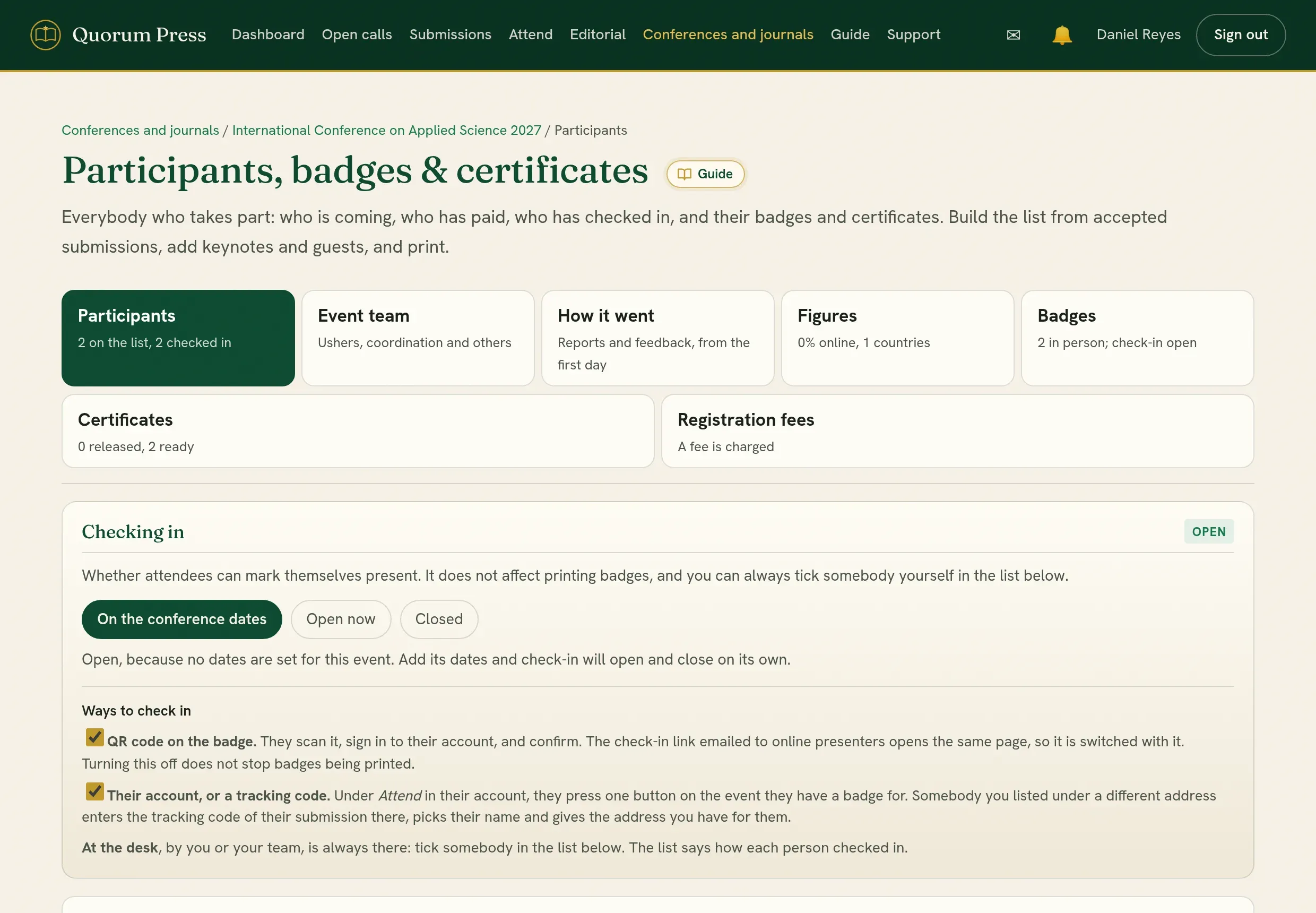
The page is in five parts, and opens on the list:
| Part | What is in it |
|---|---|
| Participants | The list, checking in, and awards. This is where you work on the day. |
| Figures | The list in figures: the share coming in person and online, who presents and how, who has checked in of those expected, the fee, countries, institutions and certificates. Download gives the same figures as a PDF or a spreadsheet, with no names. |
| Badges | What a badge carries, and the badges as one PDF. |
| Certificates | How the certificates look, the logo and the signers, and the certificates as one PDF. |
| Registration fees | Whether the event charges a fee, what it is, and what an unpaid fee holds back. |
Each part says where it stands beside its name, such as 2 released, 5 ready.
Participants come from the authors of accepted work who said they attend, and from people who registered to attend with no submission. Speakers, chairs, rapporteurs, the committee and helpers are added under Event team, one at a time, from a spreadsheet, from the programme, or by a join link they accept; a guest or somebody who came unannounced is added under Add one person.
| On the page | What it does |
|---|---|
| Add attending authors | Adds the attending authors of accepted work who are not on the list yet, and takes off anybody who has since said they are not attending. Somebody who has checked in, or holds a released certificate, always stays. |
| The line above the list | Says how many accepted submissions still have somebody to add, and how many people have since said they are not attending. It goes once there is nothing left to do. |
| Find | A name, email address, institution, tracking code or role. |
| Attending | Everybody, those coming, in person, online, or not attending. |
| Fee | Those whose fee is settled, or not. Shown where the conference charges a fee. |
| Clear every filter | Takes the search and every filter off, and shows everybody again. |
| Download, under the tabs | The people the list is showing, as a spreadsheet or as CSV: search or filter first and the file holds only those people. Its columns say who checked in, when and how (by the code on their badge, their account, a tracking code or the desk), how each person attends, their tracking code and whether their own fee is settled. The spreadsheet has a second sheet, Counts, for the caterers and the hall: people coming in person, the team and the rest, those checked in by day and by how, and those still to come. List to print is a PDF, one line a person with a box to tick and room to sign, the counts at its head; Participants only and The event’s team only print just those. or everybody gives the whole list. |
| One person, several parts | Somebody who presents and also chairs a session has a row for each, since each part has its own certificate. The lists, the counts and the badges count them once: one line, one meal, one badge, in their highest part. |
| Copy email addresses, beside it | The addresses of the people the list is showing, to paste into an email. It says how many, and how many of the people shown have no address. |
Each row shows how the person attends by their own latest answer. Somebody who changed to Not attending is marked so at once, before you press Generate. Where authors pay to attend, a row says when a person’s own fee is not settled even though their submission’s is.
After acceptance, authors confirm each author’s name and title, how each attends, and who presents. The conference’s page shows who has confirmed and who has not, so you can remind them before you print.
The event team
Section titled “The event team”Under Participants, Event team is for the people who help run the event: student ushers, the students who coordinate the programme, the registration desk, technical support, the chairs and rapporteurs. Each is on the list of participants too, so their badges, checking in and certificates work as everybody’s do.
- Roles and their certificates. Start from the roles offered (Student usher, Programme coordination, Registration desk, Technical support, Session chair, Rapporteur) or type your own. Each role has the certificate it is given, such as Certificate of Coordination or Certificate of Appreciation, the wording before the role (served as a person, served in a team), and a line of duties printed under it. All three are suggested from the role’s name and can be changed. Press Save the roles, then See the certificate to see how it reads.
- Add people to the team. Choose the role and write one person to a line: name, email, where they are from. Read a spreadsheet takes a CSV or Excel file, such as the answers of a sign-up form: the columns are found by their headings (Name, or First name and Surname, Email, Department), and anything else, such as a phone number, is left out. Check the lines it writes, then add them. Somebody already on the list with the same email is given the role instead of being added twice.
- A join link. Under a role, Make a join link gives an address to send to the people who are to take it, such as your student volunteers. Whoever opens it signs in, or makes an account there and then, and accepts the role: they are on the team, with their badge and certificate. New link stops the old one; Close it stops it.
- Named in the programme, not on the team. The programme’s keynote and plenary speakers, invited guests, chairs and rapporteurs who are not on the team yet are offered here, each in their role, a presenter who also chairs included. Each comes with the email the event knows them by, from their account as a reviewer or organizer, as an author, or on the list, where it knows exactly one for the name.
- The team. Each person with their role, their certificate, and their answer: Accepted, Declined, Not answered, or Not asked for somebody with no email. Somebody with an email sees their part under Attend once they sign in with it, and accepts or declines it; you are told either way. A chair or rapporteur the programme in use no longer names in that role is marked. Each line has their Badge and their Certificate (preview). Change gives one person their own duties or a certificate of their own. Print the team gives the team as a list to print.
Nobody on the team has to use Quorum Press: you can print their badges and certificates, or send them. With an email they find their part, their badge and their certificates under Attend.
Certificates are released for them on the list, as for everybody. Give each member a room (Their room, when adding them or under Change): it decides the sessions they are asked to report on.
How it went
Section titled “How it went”Under Participants, How it went compares what was planned with what happened, from two sources:
- Reports from the event team, the chairs and the rapporteurs, after each session, under Attend: when it started and ended against the printed times, which talks were given (in the room, online, by someone else, or not at all), how many people came at the busiest moment, how many questions, whether the chair was there, and what went wrong.
- Feedback from anybody who attended: two ratings for a session, and five ratings, “would you come again” and two lines for the event.
Reports and feedback are taken During the event (from its first day to thirty days after its last), or Open now to try them, or Closed. Share the link or its QR code on the screens and in an announcement.
The page shows how many sessions are reported and which are not, how late sessions began and how far they ran over each day, the talks that did not take place, people in each room against its seats, what went wrong most, the ratings and comments, and Lessons for next time written from the figures, such as how many minutes to keep between sessions or which room was too small. Download (XLSX) has the summary, every report and every piece of feedback, without names.
Badges
Section titled “Badges”A badge carries the person’s name with their title, where they are from, what they do at the event, your logo, the tracking code of their submission, and a QR code that opens their own page. Badges take the colours of your certificates.
Everybody on the list who attends in person has a badge, people with no work of their own included. Add guests of honour, keynote speakers, the conference chair, session chairs, rapporteurs, the press and helpers under Event team with their role, and their badges are made with everybody else’s.
Who is who
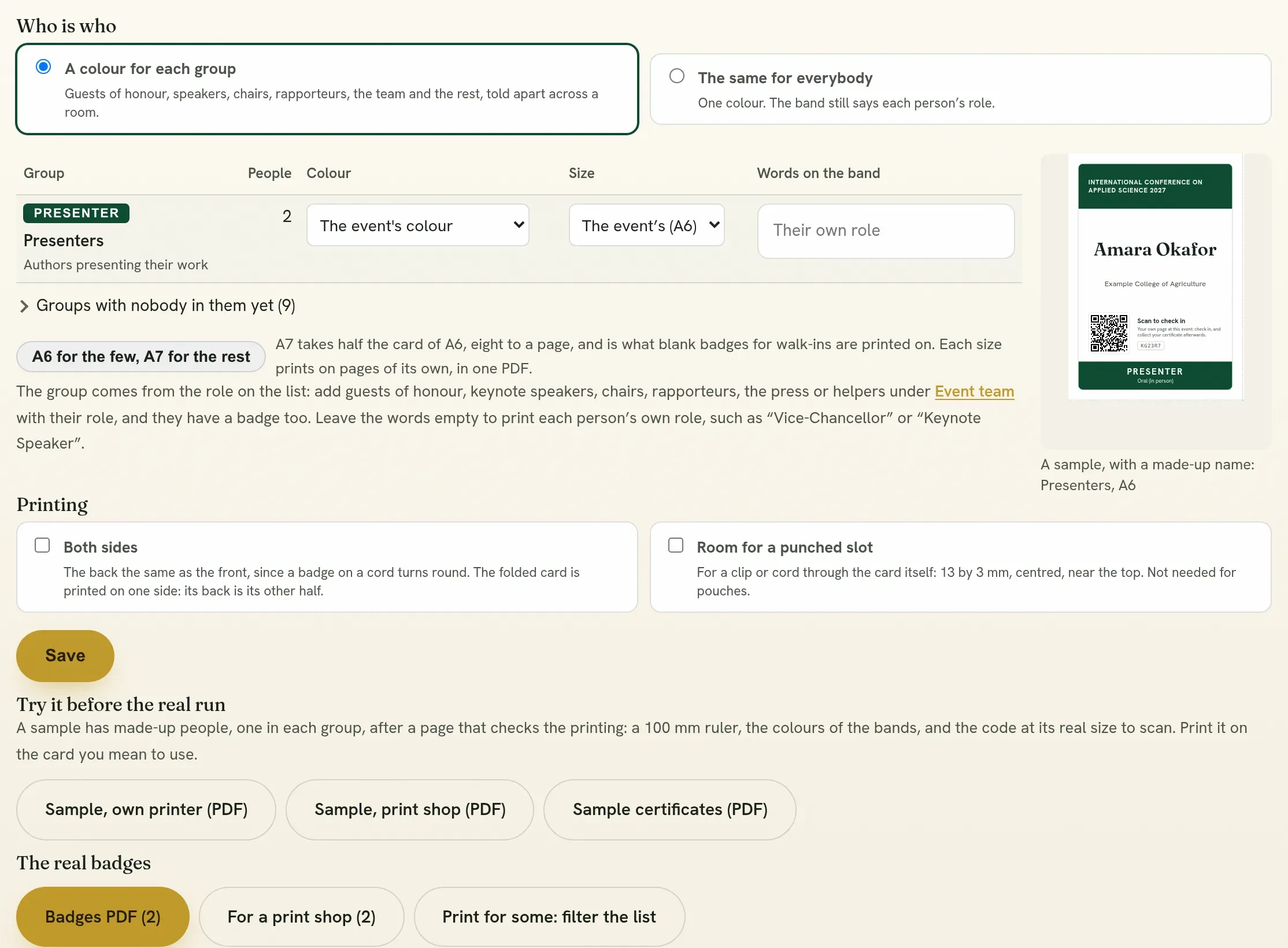
Section titled “Who is who”The band along the foot of a badge says who the person is, so ushers and chairs can tell people apart across a room. Under Who is who on the Badges part:
- A colour for each group, or The same for everybody. With one colour, the band still says each person’s role.
- The groups are guests of honour, speakers, organizers, session chairs, rapporteurs, the event team, press and media, exhibitors and sponsors, presenters, and everybody else. A person’s group comes from their role on the list: “Vice-Chancellor” is a guest of honour, “Keynote speaker” a speaker, “Usher” the event team.
- Each group has a Colour and Words on the band. Leave the words empty to print each person’s own role, or type the group’s, such as “VIP” or “Chair”.
- The badge beside the list is a sample with a made-up name, drawn with what you choose before you save it. Press a group’s colour chip to see its badge.
The head of the badge
Section titled “The head of the badge”Beside the logo, every badge has your institution, the event’s name as it is to be printed, and the place and the dates, on a line each on the larger badges. Each is your event’s own until you change it under The head of the badge; leave one empty and it is not printed.
If your event’s title is drawn as a picture on its posters, its wordmark, upload it as the Title picture. It is printed across the head in place of the name. Use a PNG with a clear background, about 2000 pixels wide, with lettering light enough to read on the head’s colour: the panel shows it on that colour. The folded card’s white back keeps the name in words.
The size
Section titled “The size”Choose the size on the Badges part of the Participants page. Each is shown as one of your own badges:
| Size | For |
|---|---|
| A6, four to a page | 105 by 148 mm, the usual conference badge holder. The name, the role and the code are all on the front. |
| A7, eight to a page | 105 by 74 mm, on its side. For a small holder, and half the paper. |
| 4 by 3 inches, six to a Letter page | 102 by 76 mm, on its side. The usual holder where Letter paper is used. |
| Made to fit your badge holders | Cut to slide into the clear plastic badge holders (pouches) you have, four to an A4 page. You give the holder’s measurements (below). |
| Folded, four to a page | 86 by 54 mm once folded over a clip: the name on the front, the code on the back. |
A group can have a size of its own: choose it in the Size column of Who is who. A6 for the few, A7 for the rest gives guests of honour, speakers, organizers, chairs and rapporteurs an A6 badge and everybody else A7, which takes half the card. Each size prints on pages of its own, in one PDF, and blank badges take their group’s size (general ones the size of everybody else). The size chosen here is for every group not given one of its own.
Made to fit your badge holders
Section titled “Made to fit your badge holders”Badge holders, the clear plastic pouches a badge slides into, are not all the same size, and a badge printed at the holder’s own size will not go in: the sealed edges round the pocket take some of it. Choose Made to fit your badge holders, then under Your badge holders measure one of yours in millimetres: its outside width and height, and how much the sealed edges take at each side, at the foot and at the top, where the cord is held. The badge is cut 3 mm narrower and 3 mm shorter than the pocket, so it slides in and out freely without moving about. For example, a holder 95 by 139 mm, sealed 5 mm at the sides and foot and 10 mm at the top, has a pocket of 85 by 124 mm and takes a badge of 82 by 121 mm.
The badge is the A6 design (or the A7, if the holder lies on its side) scaled to that size; the code stays 22 mm across. On the sheet the colour runs a little past each cut, and short marks show where to cut, so a cut a little out leaves no white edge. Cut one and try it in a holder before printing them all.
- The name is as large as it can be. A long name is set smaller so that it fits; it is never cut off, and it breaks between words, never at a hyphen.
- The code is 25 mm across on A6 and the folded card, 22 mm on the smaller sizes: enough for a phone held a hand away, without taking the badge’s room. Scanned by its holder, it asks them to sign in and then opens their badge, where one press checks them in at the event. Somebody else’s badge does not work for them.
Printing
Section titled “Printing”| Choice | What it does |
|---|---|
| Both sides | Each badge is printed on its back too, the same as the front, since a badge on a cord turns round. On your own printer, print two-sided and turn over on the long edge. |
| Room for a punched slot | Keeps the top of each badge clear for a slot 13 by 3 mm, centred, 5 mm from the top, for a clip or cord through the card. Not needed for badge holders. |
The badges print in the order they are handed out and looked for: by group, guests of honour and speakers first and presenters near the end, the senior offices first within a group (the vice-chancellor before the deputies, the keynote before the plenary speakers), then by name.
There are two PDFs of the real badges:
- Badges PDF, for your own printer: whole sheets. Print at actual size (100%, not “fit to page”) and cut along the fine broken lines, or at the marks for badges made to fit your badge holders. A print shop can cut these sheets too.
- For a print shop: one badge a page, at the size it is cut, with 3 mm of colour beyond the cut on every side (the bleed) and crop marks where to cut. This is what a shop’s cutter needs to leave no white edge.
- Name tags list (PDF), or Excel: one line a badge in the order they print, to go with them to the printer and to the desk. Each line has the badge’s number as the print shop’s pages show it, the sheet it is on from your own printer, what its band says, and a box to tick as it is handed out. Those whose badge waits for an unpaid fee follow, apart. With the list filtered, Name tags list under the tabs gives the badges of the people shown.
- Badges and blanks: everything for the printer in one file. After the badges come blank badges, one for each person attending in person whose fee is not yet paid, since many pay on the day, and as many spare as you choose (10 to begin with). Their list goes with it: the badges, then each blank by the name of the person it is kept for, “(print blank tag)”, then the spares. So the printer is sent two PDFs.
- One side: when the badges are set to both sides, a printer may find a file of fronts and backs hard to follow. Badges, one side, For a print shop, one side and Blank badges, one side give each badge once; the back is the same as the front, so the second side is printed from the same pages.
Try it before the real run
Section titled “Try it before the real run”Under Try it before the real run, the samples have made-up people, one in each group, so you can print them, show them round or take them to a shop without printing anybody’s name early.
- Sample, own printer and Sample, print shop begin with a print check page: a line that must measure 100 mm and a 50 mm square (if they do not, the page was scaled), the colour of each group’s band, the code at its real size to scan with two phones, the smallest words on the badge, and how to print: the paper or card, both sides, the slot.
- Sample certificates are your certificates, in your design and with your signers, for made-up people: a presenter, a presenter of a long work online, a keynote speaker, a session chair, a rapporteur, an usher, and an award. Their number reads SAMPLE.
Print one sample on the card you mean to use. Check the 100 mm line, that the codes scan, and that the colours are the ones you expect: printers and screens show colours differently.
Blank badges are for people who come unannounced or pay on the day: choose the kind and how many, and press Blank badges (PDF). General badges can go to anybody: the band at the foot is in your event’s colour with no words on it. Or choose a group, and its band and words are printed. Each has the head and the logo, and lines for a name and a place written at the desk. Tick Label the lines on blank badges under Printing to print “Name:” and “Affiliation:” before them, so whoever writes knows what goes where. A black or blue marker reads well on the white part of the badge. The band of a general blank badge carries no role, since nobody’s is known yet; under Words on the band of general blank badges you can give it your motto or the event’s own line instead.
Releasing badges to participants
Section titled “Releasing badges to participants”Participants can see and download their own badge is off until you tick it. Until then, participants do not see their badge or its code under Attend, and cannot download it; you can still print every badge here. Release them once names and titles are settled, so nobody prints an early copy at home. Checking in on the day works either way.
Checking in at the event
Section titled “Checking in at the event”Checking in controls whether participants can mark themselves present.
| Choice | Meaning |
|---|---|
| On the conference dates | Opens and closes by itself on the dates of the event. |
| Open now | Open until you close it. |
| Closed | Nobody can check in. You can still tick people yourself. |
Under it, Ways to check in has a switch for each way a participant can check themselves in. Both are on to begin with.
| Way | How it works | Switch |
|---|---|---|
| QR code on the badge | They scan the code, sign in to their account, and confirm. The check-in link emailed to online presenters opens the same page. | On or off. Turning it off does not stop badges being printed. |
| Their account, or a tracking code | Signed in, under Attend, they press I am here: check me in on the event. Somebody you listed under a different email address enters the tracking code of their submission there, picks their name, and gives the address you have for them. | On or off. |
| At the desk | You or your team tick the person in the list. | Always there. |
With both switches off, the desk is the only way. Every way needs the participant to be signed in to their own account, so one person cannot check in another.
The list says how each person checked in, under the time: By QR code or check-in link, By their account, By tracking code or By the desk. The download has a Checked in by column. Attendance recorded before this was kept shows a time alone.
Certificates
Section titled “Certificates”Set the logo, the signatures and the signers under Who signs, and the logo, which says who signs beside its name, and is one press from the certificate design (Who signs). Each signer is ticked for what they sign: letters of acceptance, certificates of participation, award certificates, the team’s certificates (speakers, chairs, rapporteurs, the committee, helpers) and certificates of review. Where nobody is ticked for a kind, those who sign the certificates of participation sign it. So the vice-chancellor can sign the certificates of participation and the team’s, and the conference chair and co-chair the letters and the certificates of review.
A participant who was marked present can download a certificate of participation. Certificates reach participants only after you release them.
Choose how they look
Section titled “Choose how they look”Under Certificates, Certificate design shows eight designs, each drawn as your own certificate, with your logo, your signers and a name from your list.
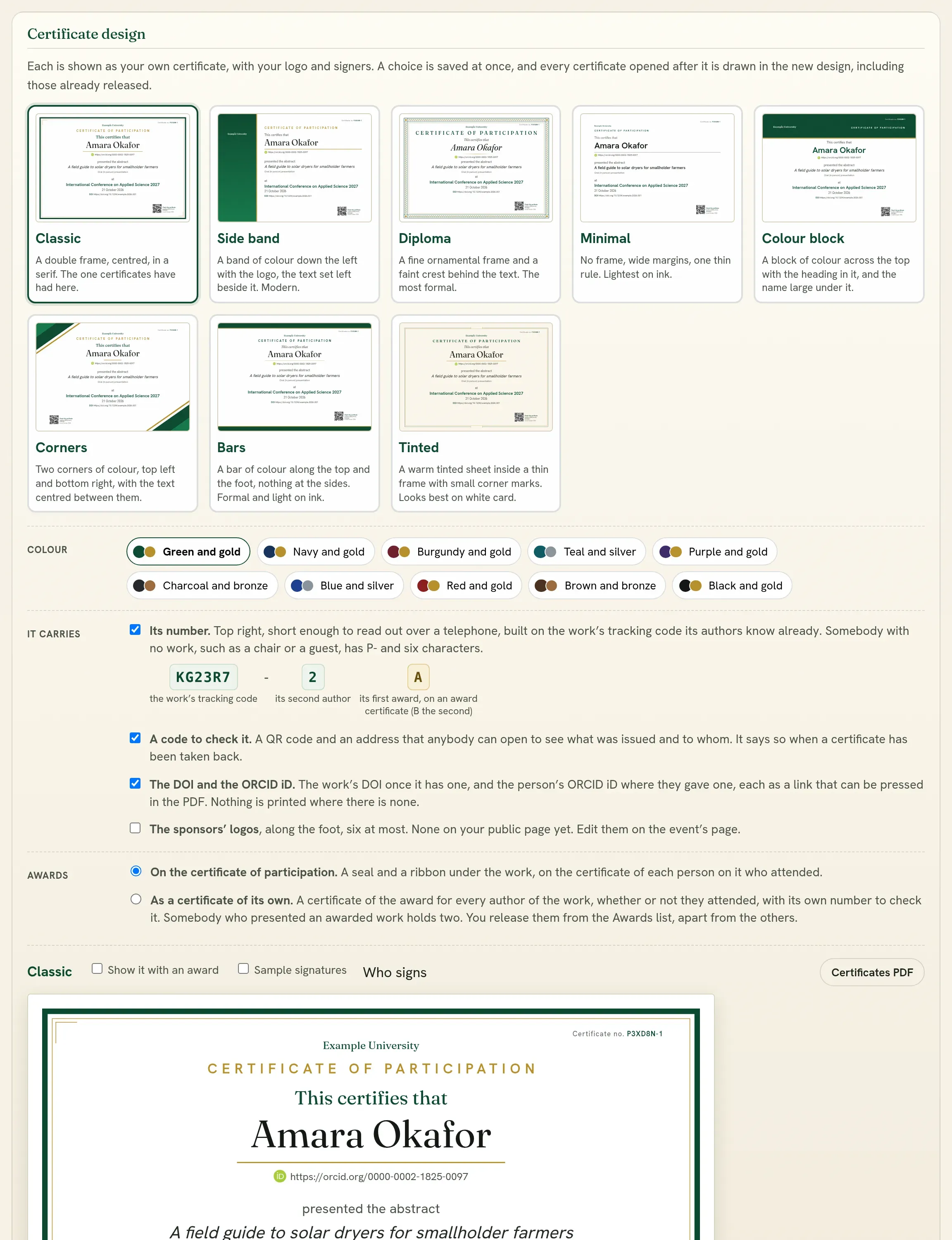
| Design | What it is |
|---|---|
| Classic | A double frame, centred, in a serif. |
| Side band | A band of colour down the left with the logo, the text set left beside it. |
| Diploma | A fine ornamental frame, with your logo faint behind the text. The most formal. |
| Minimal | No frame, wide margins, one thin rule. Lightest on ink. |
| Colour block | A block of colour across the top with the heading in it, and the name large under it. |
| Corners | Two corners of colour, top left and bottom right, with the text centred between them. |
| Bars | A bar of colour along the top and the foot, nothing at the sides. Formal and light on ink. |
| Tinted | A warm tinted sheet inside a thin frame. Looks best on white card. |
Choose a Colour from ten. Tick Show it with an award to see where the seal and the ribbon go.
A choice is saved at once. Every certificate opened after it is drawn in the new design, including those already released, since a certificate is drawn when it is opened and not kept as a file.
Room to sign. Every signer has 17 mm above their line, enough to sign by hand on the printed certificate, whether or not a picture of their signature is uploaded. The lines stand at one height however long the names and titles under them are, and there is clear space between the text and the signatures. A scanned signature on a white background prints without its white box.
Sample signatures. Beside the large preview, tick Sample signatures to see the certificates signed before anybody has scanned their signature. Your signers keep their names and titles and are lent a signature that belongs to nobody; with no signers yet, three made-up ones stand in. It is off to begin with, it shows only in the previews and the sample certificates, and never on a certificate that is issued.
The text fits itself to the page. A guest’s certificate has a name and an event. An author’s may have a long title, two awards, three signatures and six sponsors. Each certificate sets its text as large as it can be and still end above the signatures, so a short one does not look empty and a full one is not cut off. Everything that matters is kept inside what an office printer reaches, the QR code included.
What a certificate carries
Section titled “What a certificate carries”Every certificate has the person’s name with their title, what they presented or the part they took, the event, when and where it was held, and your signers. Under It carries you choose the rest:
| Tick | What is printed |
|---|---|
| Its number | The work’s tracking code and the person’s place in its list of authors, such as FF4WME-2 for the second author, top right. Every author of a work has their own certificate, so each has its own number. Somebody with no work, such as a chair or a guest, has P- and six characters, such as P-3A9C1F. |
| A code to check it | A QR code and a short address. Anybody can open it, with no account, and see what was issued and to whom. |
| The DOI and the ORCID iD | The work’s DOI once it has one, and the person’s ORCID iD where they gave one. Each is a link that can be pressed in the PDF. Nothing is printed where there is none. |
| The sponsors’ logos | Along the foot, six at most. They are the sponsors on your event’s public page. |
The first three are on to begin with. The dates and the place come from your event’s page, so set them there.
Checking a certificate. The address on a certificate opens a page that says This certificate is genuine, with its number, the name, the work, any award and the event, read from the record and not from the page somebody holds. Under that it shows the certificate as issued: the certificate itself, drawn from the record, so the one somebody holds can be compared with it line by line. If you take a certificate back, the same address says that no certificate stands under the code, and names nobody. An employer or a committee can use it to see that a certificate was not altered. The page also gives the holder’s ORCID iD and how the work was presented, where those are known, and has Copy the link for passing it on. Shared on social media or in a message, the link shows a card with the holder’s name, the work, any award, the event and the number. A certificate not yet released, or held for a fee, shows a plain card that names nobody. Somebody holding a photocopy can type the number at quorumpress.org/check. Small letters, spaces, or the words “Certificate no.” in front of it are all read.
See the check page before you release. Until a certificate is released, its address tells everybody else that no certificate stands under it. You are shown what it will say: on a row, press Check page (preview). The page says that only you see it, and it shows the certificate as it will be issued. The same link on a released row opens what the public sees. A released certificate that is held for an unpaid fee is the one exception: its address says it is genuine, but the certificate is drawn only for you until the fee is settled or you give it despite the fee.
From a person to their submission. In the Role column, the tracking code beside the role, as in “Presenter HP8KAK”, opens that submission. It is a link for editors of the conference. Somebody who only runs the event sees the code as text.
A submission’s people together. Tick Group by submission beside the search, and the list is set out submission by submission: a head with the tracking code, the title, where its fee stands and how many of its authors are on the list, then its people. Under the head are the authors who are not on the list, each with why: not attending, has not said, or attending and not on the list yet. People with no submission, such as keynotes and guests, come last. Typing a tracking code in the search does this for that one submission, so a co-author nobody has paid for is found by the code on the submission. From a row or a line you can Waive their fee or Let them attend; see Registration and fees.
Keeping a certificate off the check address. Anybody with a certificate’s code can check it, and that is the point of it. Its holder, signed in with the address you hold for them, can switch that off under Attend (Anyone with its code can check it), and you can on a row (Can be checked). The address then says no certificate stands under the code, as for one never issued; you still see it, with a note of who switched it off. The certificate itself is unchanged and still theirs.
Certificates of review
Section titled “Certificates of review”Every reviewer who returned a review of one of the event’s works has a certificate of review, saying how many manuscripts they reviewed, counted as everywhere else in Quorum Press. Reviewers are not on the list of participants, and most never come: their certificates come from their reviews. Under Certificates, Certificates of review lists them, with Certificates of review (PDF) to check and print, each reviewer’s own certificate and check page, and the heading (Certificate of Review to begin with). Releasing them asks you to confirm first; each reviewer is then told in the app and finds theirs under Attend. Take them back stops that. Their numbers are R- and eight characters, such as R-4DB27915, and are checked at the same address as the others. A name typed all in capitals or in small letters in an account is set as names are written, and somebody on your list prints as the list has them.
The name on a certificate
Section titled “The name on a certificate”A certificate prints the person’s name from your list, with the title the author confirmed in front of it.
| Who | What they can do |
|---|---|
| The holder, before release | Under Attend in their account, they see the name their certificate will carry and can press Correct the name. It is theirs to spell until you release it. |
| The holder, after release | Nothing. The certificate is issued, and they are told to write to you. |
| You, at any time | On a row, press Edit and fill in Name printed on the certificate and badge, exactly as it should appear, title included. Leave it empty to print the listed name again. |
A row whose holder set the name says Printed as … · set by the holder, and the confirmation before a release lists those names beside the names they are listed under, so you see them before the certificates go out.
When you correct a name after release, nothing has to be sent again. The certificate keeps its number, and it carries the new name the next time the holder opens it, as does the page that checks it.
Releasing certificates
Section titled “Releasing certificates”Releasing is hard to take back: once a certificate is released, its holder can download it, and a copy already downloaded stays with them. So every release stops and asks you to confirm.
| On the page | What it does |
|---|---|
| Release it, on a row | One person’s certificate. |
| Release the ready, under the tabs | The people the list is showing whose certificates are ready. Search or filter first to choose who. |
| Release all certificates | Everybody who is ready. |
| Email it, and Email the released | Writes to people whose certificate is already released, with a link to collect it. The row shows how many times they were written to. |
| Take it back | Removes the certificate from the person’s account. A copy they downloaded stays with them. |
The confirmation says how many certificates it is, how many carry an award, and whose registration fee still holds theirs. You choose there how people are told:
- Make it available only. Nobody is emailed. Copy the addresses there to write to them from your own mailbox, or use Email the released later.
- Make it available and email each of them a link to collect it.
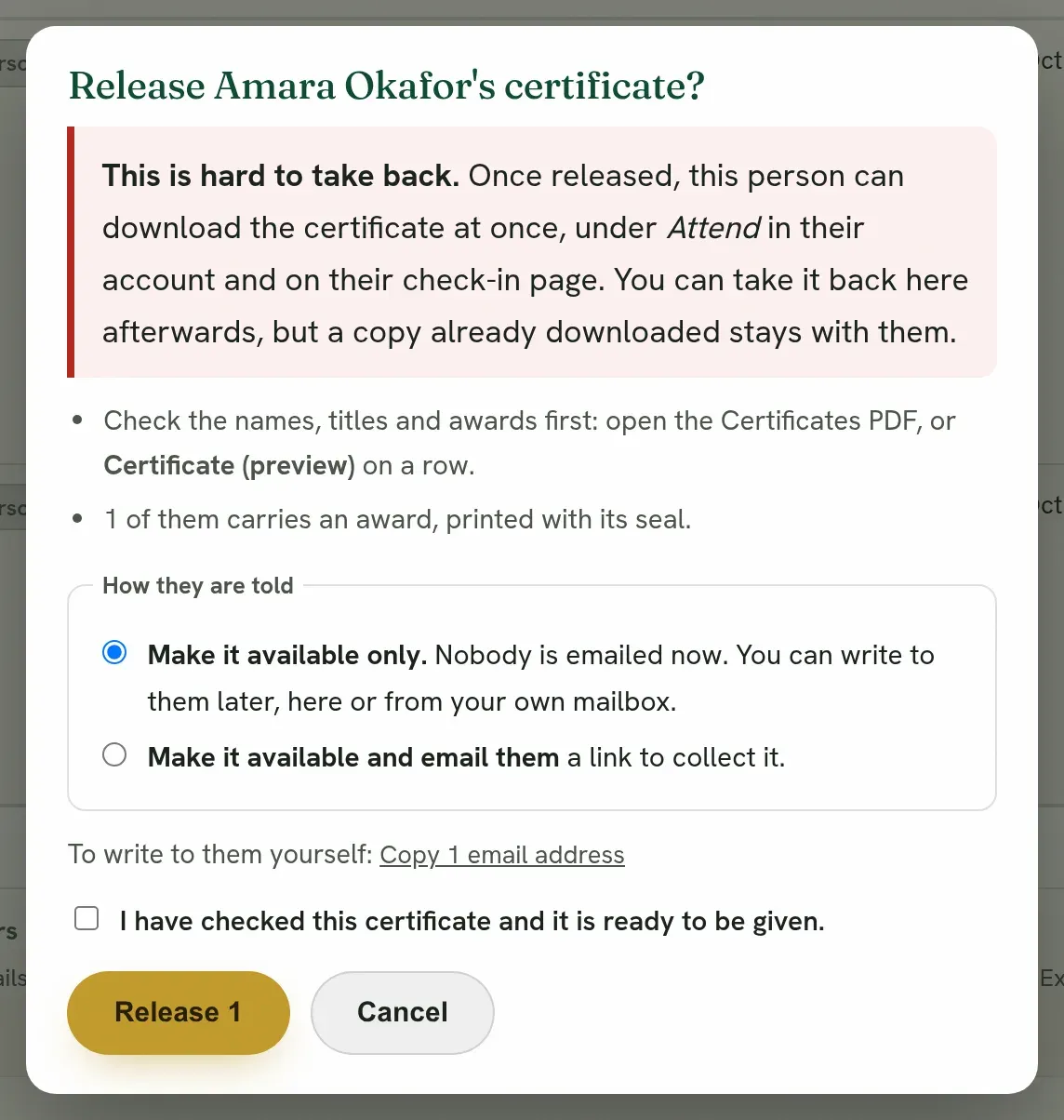
Tick that you have checked the certificates, then confirm. Check them first with Certificates PDF, or Certificate (preview) on a row.
A released certificate is in the person’s account under Attend, in Your certificates, and on their check-in page.
Who gets a certificate, and who is held back
Section titled “Who gets a certificate, and who is held back”Two things can keep a certificate from somebody, and you can overrule either.
| What holds it | What happens | How to give it all the same |
|---|---|---|
| They did not check in | No certificate is made for them. The row says Not checked in. | Press Allow one on their row. Then release it. |
| A fee is not settled, where your event says an unpaid fee holds back certificates | The certificate can be released, but its holder cannot open it. Their row says Held by a fee not settled. | Press Give it despite the fee on their row. Or, when you release, tick Give it all the same in the confirmation. |
Where your event charges no registration fee, only the first of these applies. Nothing is ever held for a fee, the list has no Fee column, and the release confirmation says nothing about fees. A participant checks in at the event, or you press Allow one, and you release the certificate. The same is true where you charge a fee and have set it to withhold nothing.
Giving a certificate despite the fee is a decision about that person and nothing else:
- The fee is left as it is. Nothing is marked paid or waived, and your totals do not change.
- It is recorded that you decided it, and when.
- Hold it for the fee again on the row takes the decision back. A copy already downloaded stays with its holder.
- Only that person is affected. Other people on the same submission are still held until you give theirs too.
A typical case: one author paid for themselves, the co-authors attended and nobody paid for them, and the committee later agrees they should have their certificates. Filter the list by Fee: not settled, press Release the ready, and tick Give them all the same.
To stop a fee holding back anybody’s certificate, open Registration fees on this page and untick their certificate under what an unpaid fee withholds. Every released certificate then opens at once, for everybody, and you can tick it again later.
To write the fee off, waive it at the registration desk instead. That says the money is no longer owed, which is a different thing from giving a certificate while it is.
Awards
Section titled “Awards”Mark a submission as, for example, the best poster. The award is the submission’s: it is printed on the certificate of everybody on it, with a gold seal, the title, and how it was chosen.

- On a row, under the certificate, press Mark an award. Give the title, such as Best Poster or Best Paper, second place, say whether the organizing committee or readers’ votes chose it, and add what it is for if you wish, such as a track. Then press See the certificate.
- Awards, above the list, shows every award given, and has Give an award for any submission on the list.
- With an award, beside the filters, narrows the list to the people who hold one. The download has an Award column.
- Remove takes an award off the submission, and off every certificate it was on.
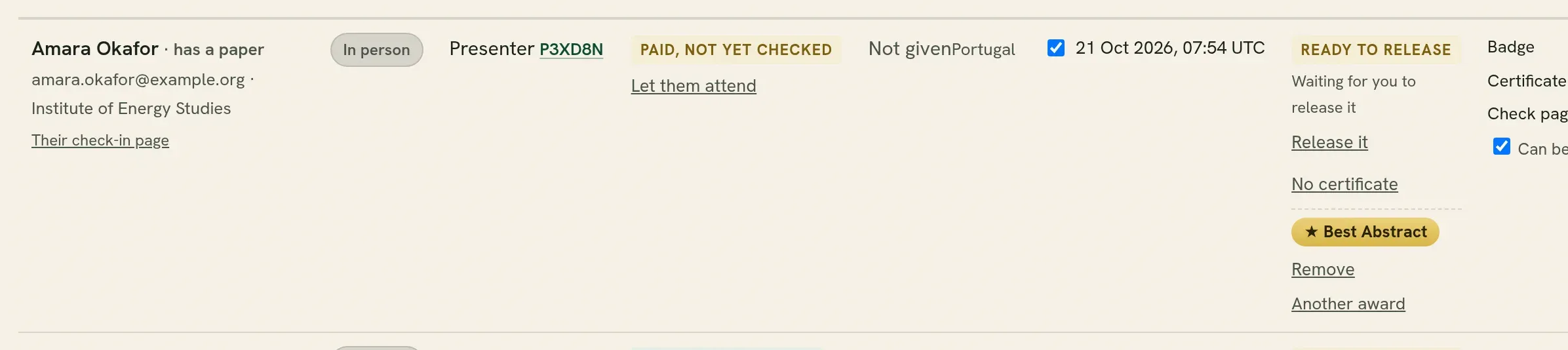
Suggestions. Under Awards, two kinds of suggestion are made, each for you to agree to or not:
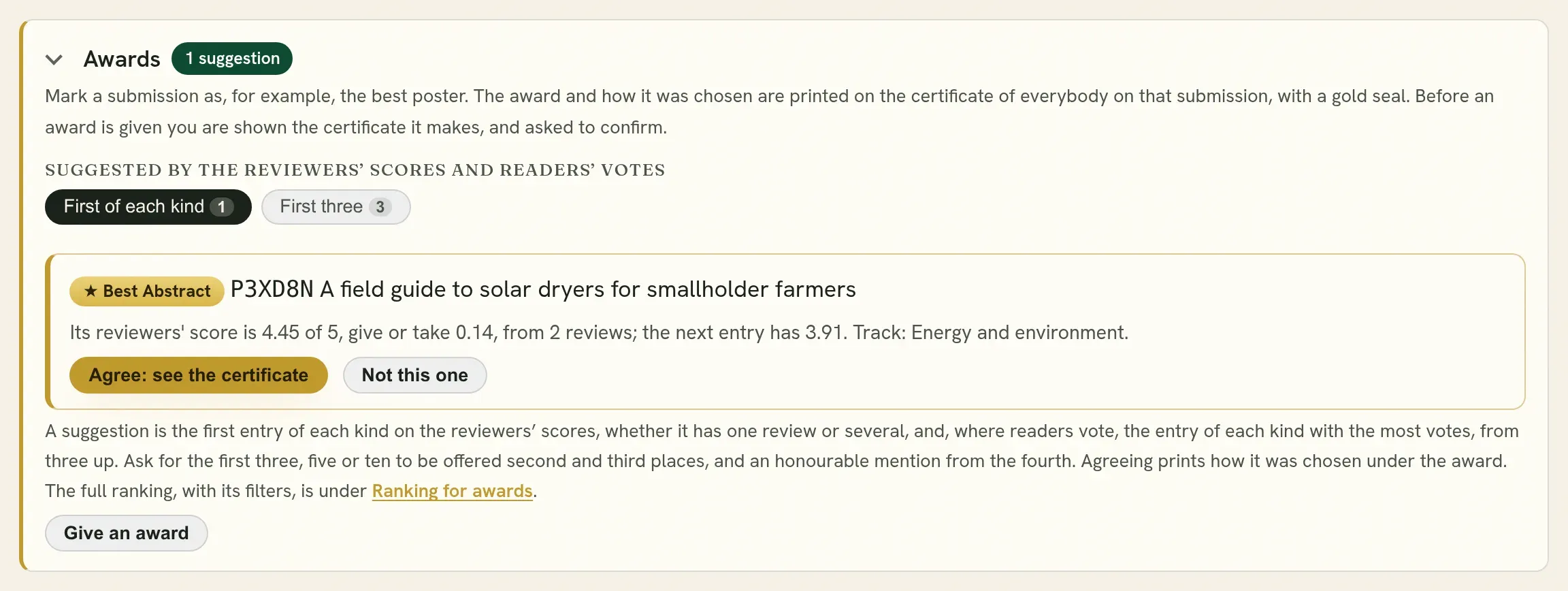
- From the reviewers’ scores: the first entry of each kind, as Best Poster, Best Paper and so on. An entry counts whether it has one review or several; with several, their average is used. It says its score, its margin, how many reviews it rests on, and when the entry after it is too close for the scores to separate them.
- From readers’ votes, where readers vote in the book of abstracts: the entry of each kind with the most votes for it, as Readers’ Choice, from three votes up. It says how many votes it has, how far ahead it is, and when most of its votes come from its own authors’ institution.
Ask for more than the first. Above the suggestions, choose how far down each kind to suggest:
| Choice | What is suggested |
|---|---|
| First of each kind | The leading entry of each kind. This is where it starts. |
| First three | Also a second and a third place, as Best Poster, second place and Best Poster, third place. |
| First five, First ten | Also the entries placed fourth and below, each as an Honourable Mention, with its kind said under the title. |
Beside it you can narrow the suggestions to one kind of work, or to those from the reviewers’ scores or from readers’ votes. A suggestion below the first says its place, and the places it could hold where the scores do not settle it.
Press Agree: see the certificate, or Not this one. Nothing is given yet.
Before any award is given, you look and then confirm. This is the same whether you agree to a suggestion, mark an award on a row, or give one from the ranking.
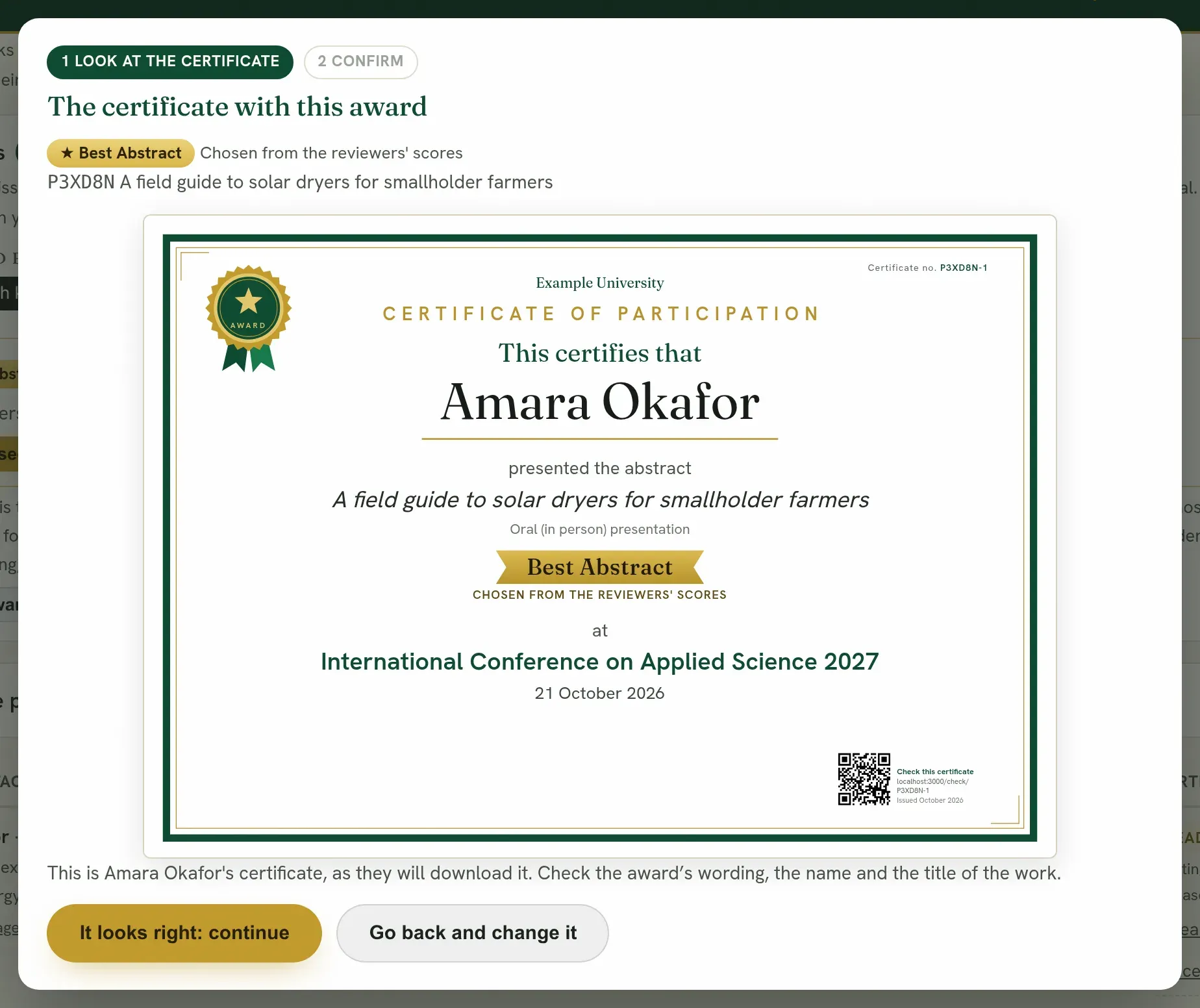
- Look at the certificate. It is the real certificate, with the award’s ribbon and seal on it. Check the wording, the name and the title of the work. Go back and change it returns you to the form.
- Confirm. It says whose certificates the award lands on, how many of them are already released and so show it at once, and whether the submission holds an award already. Tick that you have looked, and press Give the award.
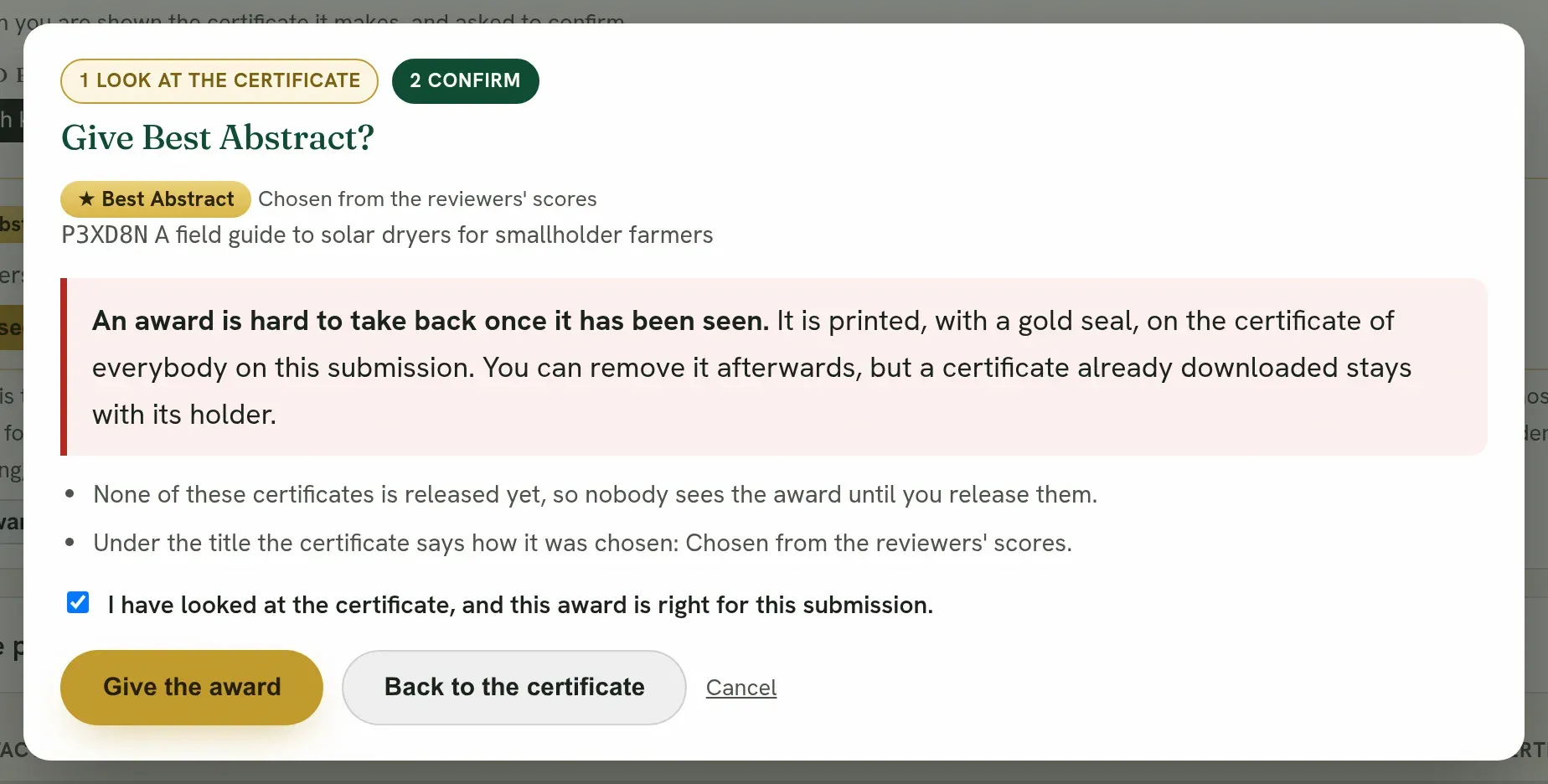
An award can be removed afterwards, but a certificate already downloaded stays with its holder, which is why it asks first. The certificate says how the award was chosen. Two entries that are level are both suggested, and the choice is yours. The whole ranking, with its filters, is on Book of abstracts and ranking. How to pick each award sets out the choices for a best paper, second and third place, an award in each track, a readers’ choice and the rest.
Award certificates of their own
Section titled “Award certificates of their own”An award can be printed on the certificate of participation, as above, or given a certificate of its own. Under Certificates, Certificate design, choose under Awards:
- On the certificate of participation. The award, its seal and how it was chosen are printed under the work, on the certificate of each person on it who attended. This is where every event starts.
- As a certificate of its own. Each author of an awarded work is given a certificate of the award, apart from the certificate of participation. Somebody who presented an awarded work then holds two. An author who did not attend is given the award certificate too, since the award is the work’s, but no certificate of participation.
An award certificate is headed Certificate of Award with the award’s title, then the person it is presented to, the work, every author of it, and the event. It has its own number, the number of the person’s certificate with a letter after it, A for the work’s first award and B for its second, such as FF4WME-2A, so it is checked on its own. Choose its design and colour beside the choice, or keep those of the certificate of participation. To have it signed by somebody else, such as the chair of the awards committee, tick award certificates for them under the certificate signatures; where nobody is ticked for them, those who sign the certificates sign them too.
With awards as certificates of their own, each award under Awards says whether its certificates are released and how many authors are on the list:
- Check them opens that award’s certificates as one PDF. All award certificates as one PDF opens every one.
- Release the award certificates asks first. It says they go to every author of the work, whether or not they attended, and names them. Choose whether each author is emailed a link, tick that you have checked them, and release. Release every award certificate not yet released does the same for all of them at once.
- Take them back stops them being downloaded, and the page that checks them says no certificate stands under their numbers. A copy already downloaded stays with its holder.
An award certificate is released on its own, apart from the certificates of participation. Before you give an award, the certificate you are shown is the award certificate.
From deciding to handing over, in order:
- Agree in the committee what each award is ranked on.
- Open Ranking for awards, set those choices, and give each award from its row.
- On Participants, tick With an award and check that everybody on the winning submissions is on the list.
- Open Certificate (preview) on one of their rows and check the seal, the title and how it was chosen.
- Announce the awards, then release the certificates. Where awards are certificates of their own, release those from Awards as well.
A contact number
Section titled “A contact number”You can require a contact number from authors. It is asked once, when they confirm their details, and shown to your team only.
Quorum PressOpen callsRead researchSomething missing or wrong here? Tell us