
Write in the editor
The editor is where the body of your work lives. It looks like a page, and what you see is close to what reviewers and readers will see.
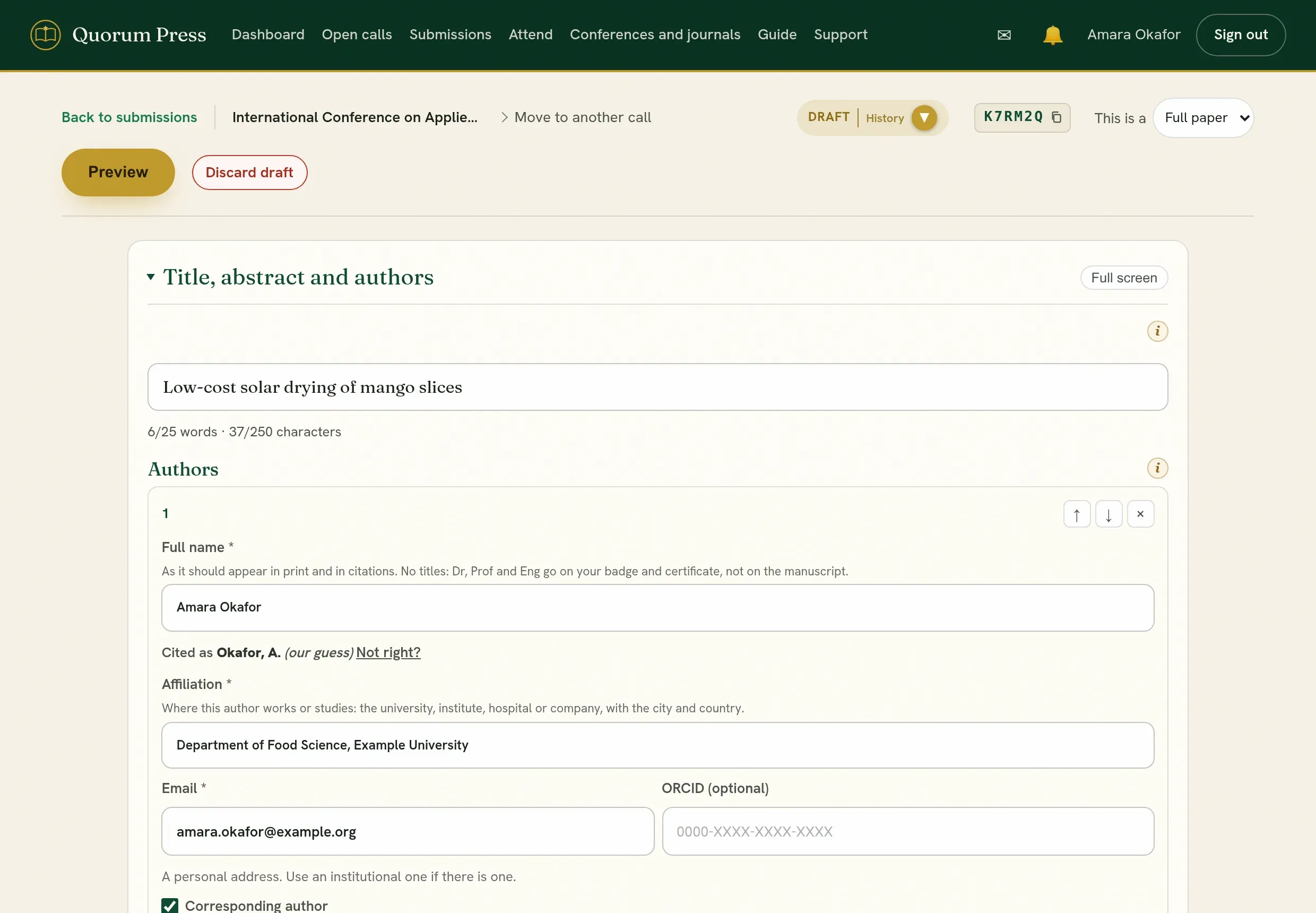
The parts of the page
Section titled “The parts of the page”| Part | What it is for |
|---|---|
| Title | The title of your work. A call may limit its length. |
| Abstract | A summary. Some kinds, such as an abstract-only submission, have nothing else. |
| Keywords | A few words that describe the topic. Advice appears while you type. |
| Authors | Everyone who should be named. See Authors and co-authors. |
| Body | The text, with its headings, figures, tables and equations. |
| References | The reference list, kept in its own panel. See References and citations. |
An abstract-only submission has no body to write: the title, abstract, keywords and authors are the whole of it.
The toolbar
Section titled “The toolbar”
The toolbar stays at the top of the screen while you scroll.
| To add | Use |
|---|---|
| A heading | The heading menu. Use headings in order: a section, then its subsections. |
| A list | The bullet or numbered list buttons. |
| A figure | The image button, or paste or drop a picture into the page. Give every figure a caption. |
| A table | The table button. You can also paste a table from Word or a spreadsheet. |
| An equation | The formula button. Write it in LaTeX: inline in a sentence, or on its own line. |
| Code | The code block button, then choose the language. |
For each of these shown by example, with what to type, see The editor: worked examples.
Figures and tables are numbered for you. Do not type “Figure 1” in the caption: the number is added, and it stays right when you move things.
Headings written alike
Section titled “Headings written alike”Under the editor, Headings says where your headings are out of step with each other, or with how this call prints them, and offers a press to put each right:
- a line in bold that reads as a heading, such as 2.1 Study area: Make it a heading;
- headings that begin at the second level, or skip one: Close up the levels;
- a heading in capitals where the call prints headings in ordinary case: Write them in ordinary case;
- some headings With Every Word Capitalised and others with only the first: A capital on the first word only;
- some sections numbered and others not: Number them all, 1, 1.1, 1.1.1, or Take the numbers off; where the call numbers every paper for you, or prints none, Take my numbers off;
- a full stop or a colon at the end of a heading: Take them off.
It also says what the call does with headings when it prints, so you know what is done for you. Each press changes only the headings it names, and Undo takes it back. Where there is much to say, the note is folded to one line; open it to see each. Leave my headings as they are puts it away. It never stops you sending your work.
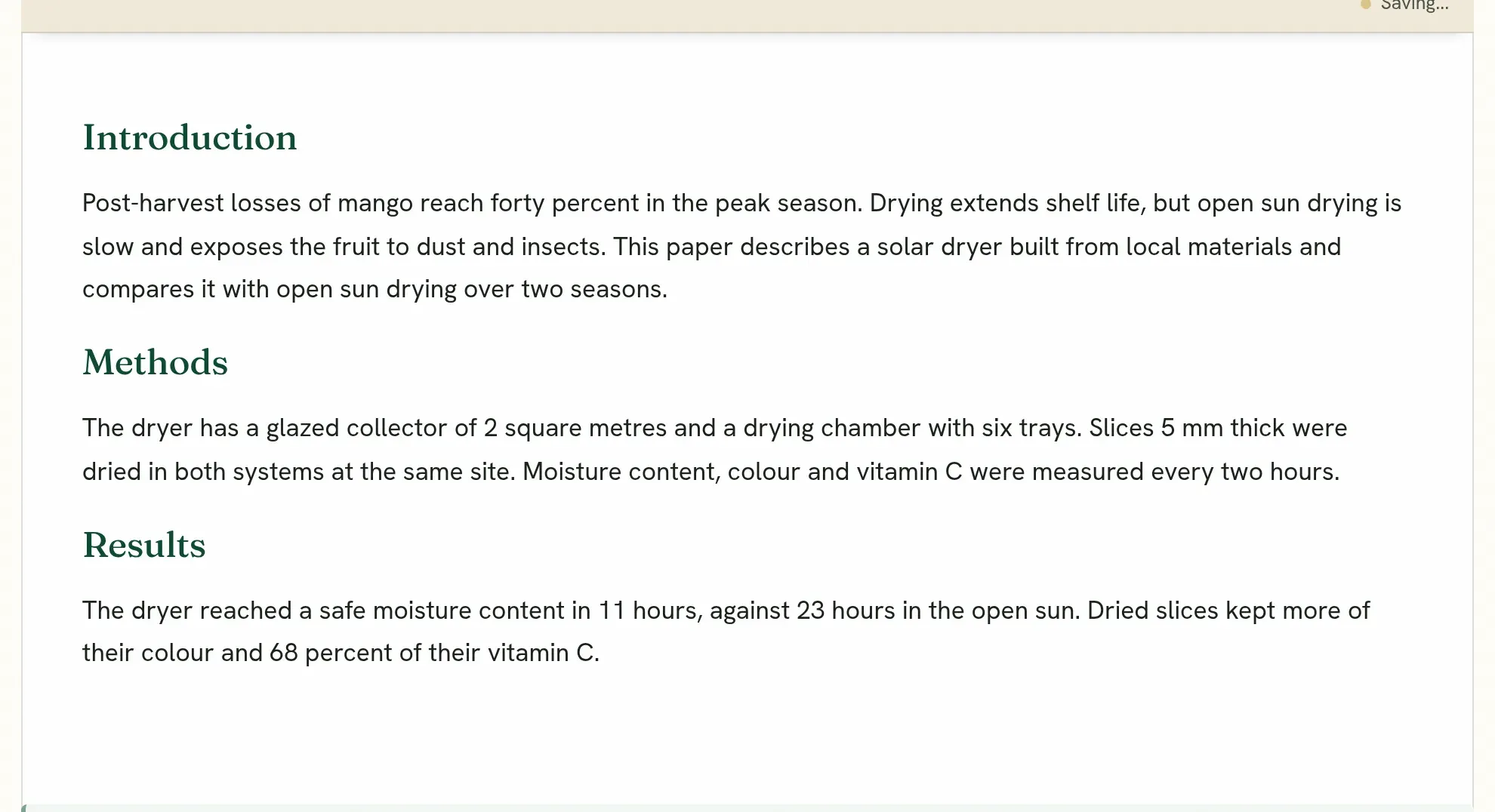
The heading buttons say what each level is for: H1 a section, such as Introduction or Methods; H2 a subsection inside it; H3 one level further in.
Saving
Section titled “Saving”Your work saves by itself as you type, and the editor tells you when it is saved. You can close the page and come back on another device.
If the connection drops, keep the page open. It saves again when the connection returns.
How to write it
Section titled “How to write it”For what goes in each part, see Write well: an abstract, a full paper, a poster, and figures and tables.
Working with co-authors in the same document
Section titled “Working with co-authors in the same document”Every author can open the submission. You see who else has it open. A corresponding author edits directly. Other co-authors make suggestions, which a corresponding author accepts or rejects one by one. See Authors and co-authors.
Quorum PressOpen callsRead researchSomething missing or wrong here? Tell us