
Create an account and sign in
An account is free. You need one to submit, to review, to run a call, and to vote where an event asks voters to sign in. You do not need one to read published work.
Create an account
Section titled “Create an account”-
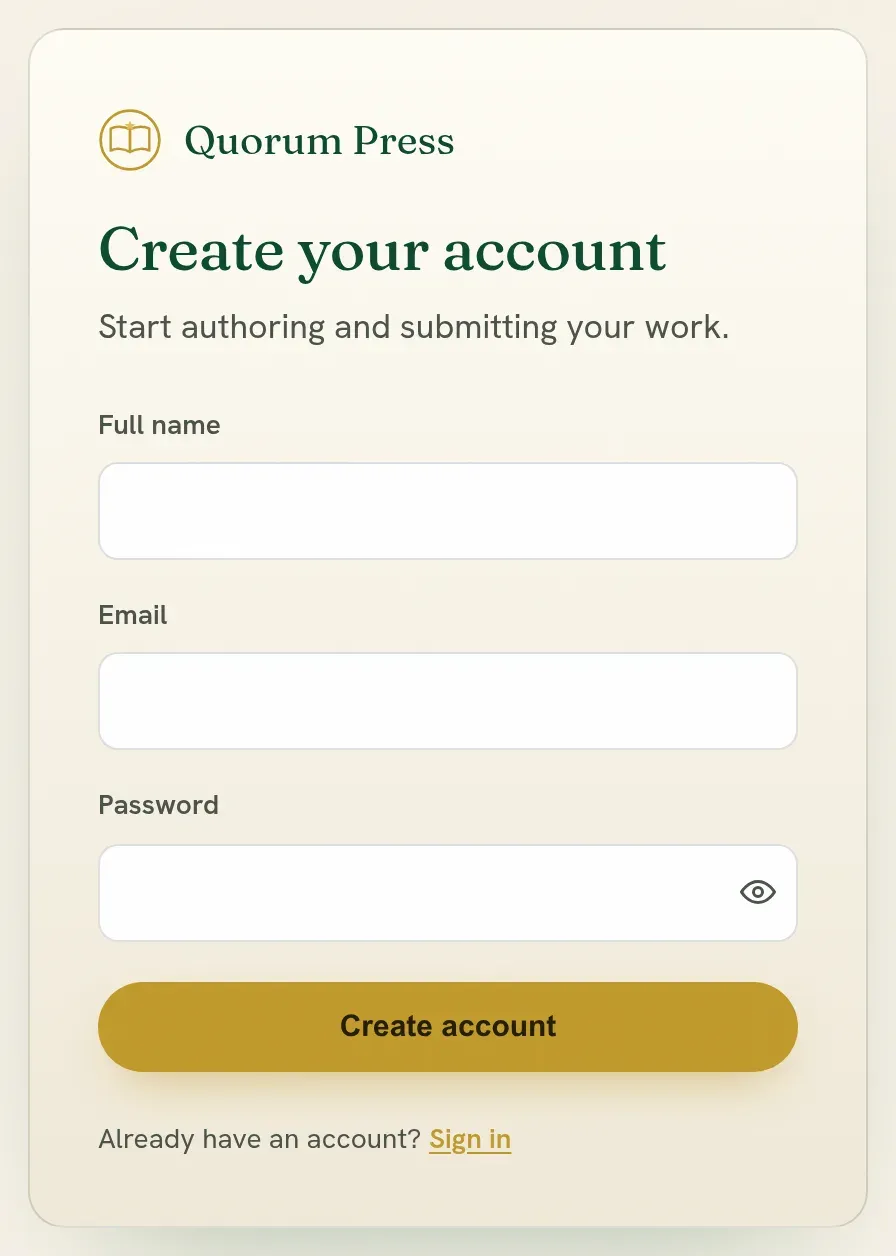
Open Create a free account.
-
Enter your name, your email address and a password.
Use your institutional address if you have one: the address your university, institute or employer gave you. It shows where your work was done, and decisions, review invitations and your letter of acceptance are sent to it. It is not required, and you can change it later in your profile, for example when you move.
If a co-author has already listed you on a submission, or somebody invited you, sign up with that same address. See Which email address to use.
-
Open the confirmation email and press the link in it. Once your address is confirmed you get one short welcome, with the three places most people begin. After that, we write only when something needs you.
Your account is active once the link is opened. If the email does not arrive within a few minutes, look in the spam folder.
Ways to sign in
Section titled “Ways to sign in”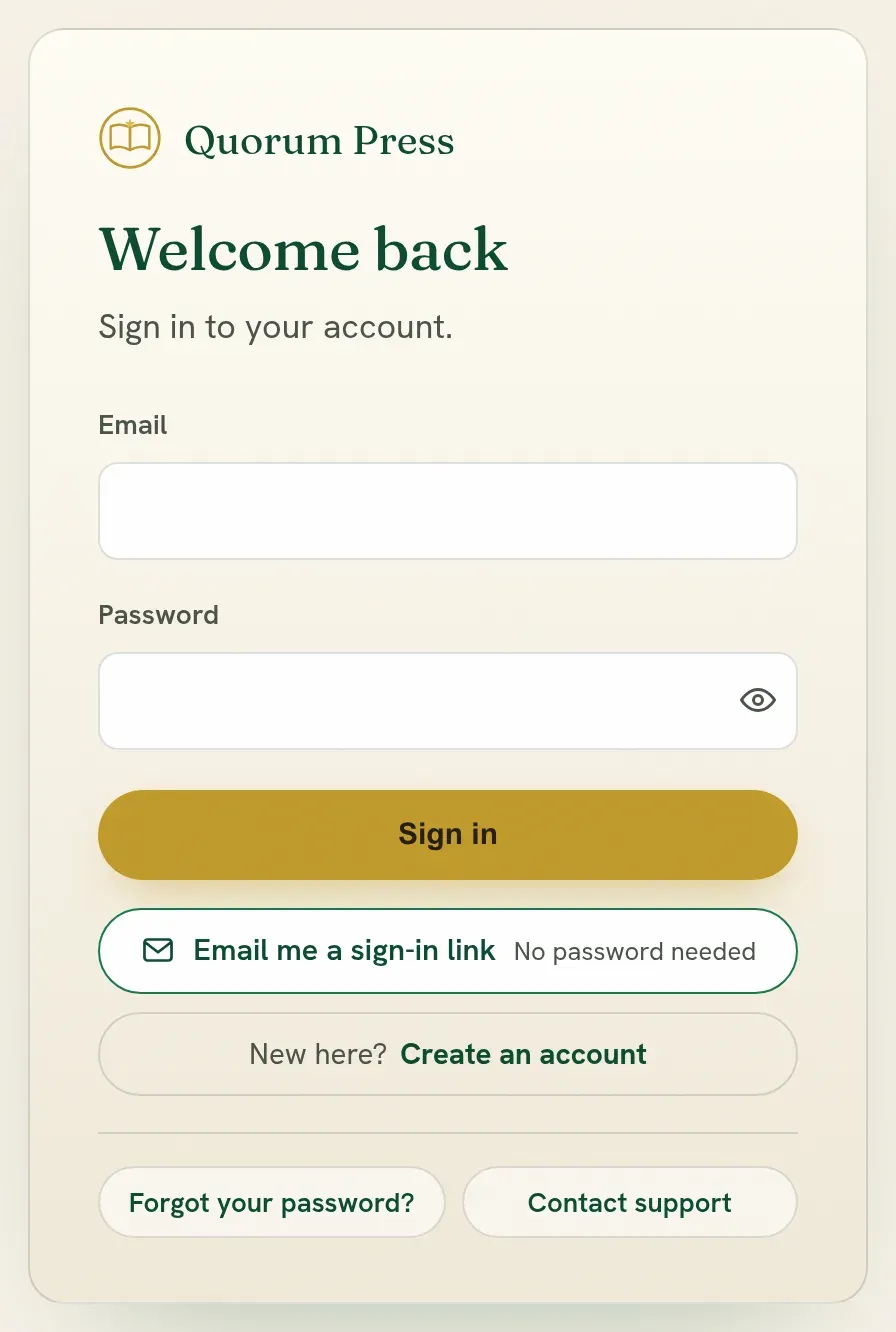
| Way | When to use it |
|---|---|
| Email and password | The usual way. |
| Email me a sign-in link | You do not remember the password. The link works once and expires in 15 minutes. |
| Continue with Google | Your account’s email is a Google address. |
Forgotten password
Section titled “Forgotten password”On the sign-in page choose Forgot password?, enter your email, and follow the link that is sent. After you set a new password, every other device that was signed in is signed out.
Change your email address
Section titled “Change your email address”Open Your profile and enter the new address. A confirmation goes to the new address, and the old address is told at the same time, with a way to stop the change. Nothing changes until the confirmation is opened.
One account, not two
Section titled “One account, not two”If you were invited as a co-author or a reviewer, or listed as an author on somebody’s submission, create the account with the same email address you were invited or listed with. The work then appears on your dashboard by itself. A second account under another address will not see it.
If you already have an account under another address, do not make a second one. Change your account’s address in your profile to the one you were listed with, or ask the corresponding author to list you with the address your account uses.
Quorum PressOpen callsRead researchSomething missing or wrong here? Tell us