
Your dashboard
The dashboard is the first page after you sign in. It lists what is waiting for you: a review to do, a revision that was asked for, a decision that is ready, details to confirm.
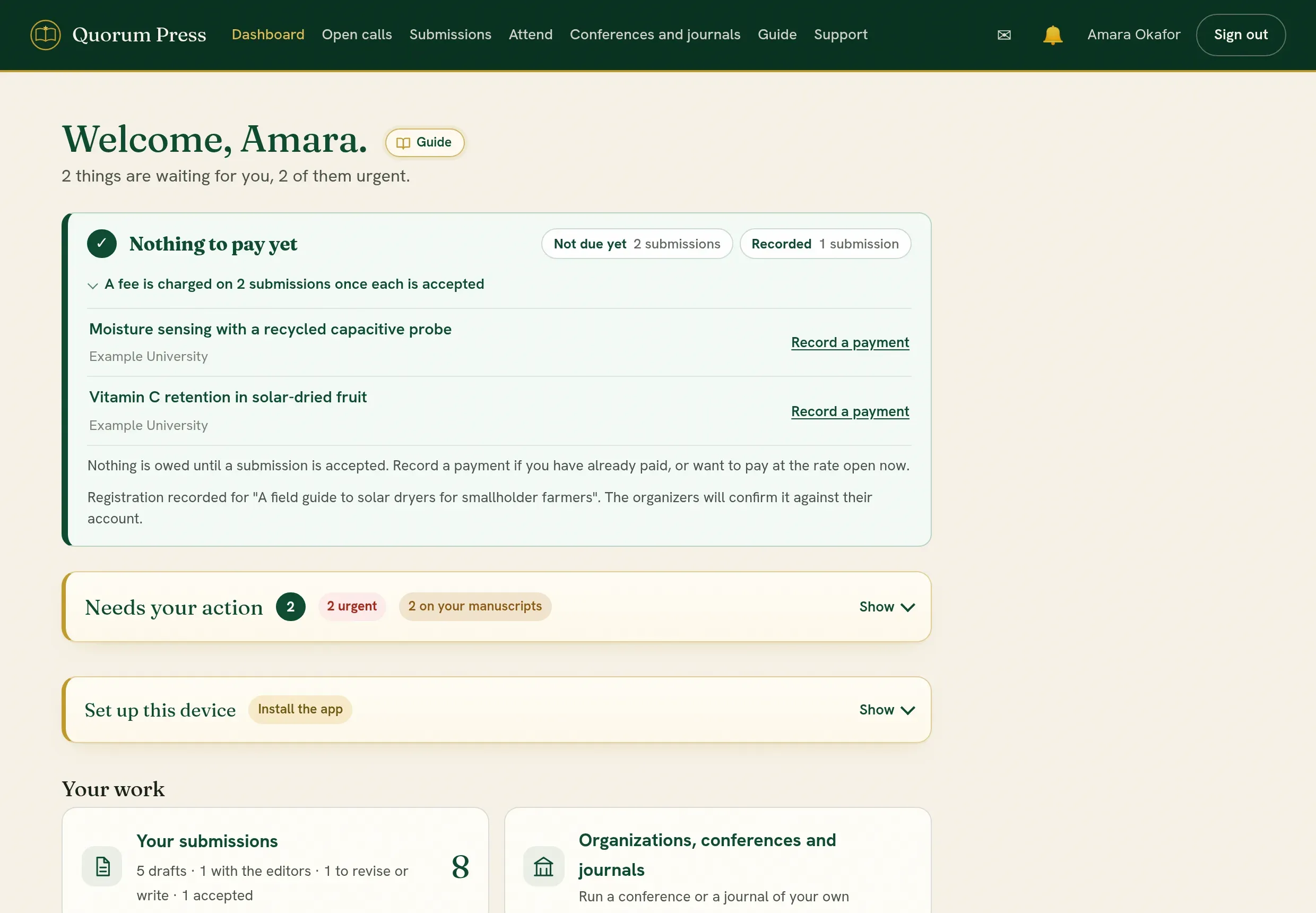
The top menu
Section titled “The top menu”| Menu | What it opens |
|---|---|
| Dashboard | What needs you now. |
| Open calls | Conferences, journals and workshops that are taking submissions. |
| Submissions | Every submission you are an author of, with its status. |
| Attend | Check in at an event on the day, collect your certificates, and register to attend a conference when you have no submission of your own. See Attend a conference without a submission. |
| Reviews | The submissions you were asked to review. Shown once you have one. |
| Editorial | Every submission of the conferences and journals you edit. Shown to editors. |
| Conferences and journals | The conferences and journals you run. |
| Organization | Your organization, its team and its plan. Shown to organization admins. |
| Guide | This guide. |
| Support | Write to Quorum Press about the platform itself. |
On a smaller screen, such as a tablet or a small laptop, the bar shows as many of these as fit, the ones you use most first. The rest are under More, at the right of the bar. On a phone all of them are under Menu, with your profile and Sign out.
Messages and Alerts sit together in the top corner, each with a count of what is unread. See Alerts and messages.
On a phone
Section titled “On a phone”The same pages work on a phone. Quorum Press can also be installed as an app from your browser’s menu (Install app or Add to Home Screen), and it can then send alerts to the phone. The app has no browser menu, so when you tap a PDF or another file in it, a panel offers Share (to send it by WhatsApp, email or another app), Save to this phone (or this computer when the app is installed on a computer) and Open to read.
Quorum PressOpen callsRead researchSomething missing or wrong here? Tell us